
Translators and interpreters often face mountains of notes, glossaries, receipts, speeches, and contracts. But you don’t have to drown in piles of paper!
In this article, we’ll explore free apps you can use to scan documents with your phone or tablet, edit and save your scans, and extract text with optical character recognition (OCR) and AI tools you may already use every day.
Why scan documents?
Scanning keeps all the paperwork you deal with as a professional translator or interpreter in one place. And though I love my flatbed scanner, I can’t use it on the go. That’s where mobile scanning apps come in.
Attend a professional conference and want to write off your expenses? It’s easy to plan to scan all your hotel, transportation, and meal receipts when you get home, then never do it. Instead, grab your phone and scan those invoices immediately.
Ever had a speaker share a paper version of their speech right before you’re scheduled to interpret? Pick up your phone, scan the document, and share it with the team.
Even better, extract the text so it’s machine-readable, then use a tool like DeepL’s document translation to get a head start when a speech is delivered at light speed. DeepL can translate entire files while preserving much of the original document formatting. (To learn how, check out my article, DeepL: More than just a translation tool.)
Key features in scanning apps
Any scanning app worth its salt should offer edge detection, automatic or easy capture, auto-cropping, and perspective correction. In other words, the app should identify the document borders, remove the background around the page, and correct perspective so the result looks as though it were scanned flat.
Ideally, your app will also offer multi-page scanning, combining several pages into a single PDF.
I recommend choosing an app that makes it easy to rename scanned documents, upload or sync them to your preferred cloud storage, and either run OCR or make scanned text searchable.
The good news is that you may not need another app at all. Google Drive, Dropbox, and OneDrive all include document-scanning features in their mobile apps, while iPhone and iPad users can scan directly from Apple Notes.
My recommendation: start with the app that matches the cloud storage ecosystem you already use.
Scanning with the Google Drive app
Google users may be surprised to learn that the Google Drive mobile app includes a capable document scanner.
The feature first arrived on Android way back in 2013 and came to iPhone and iPad in 2023. Today, Google offers document scanning in both mobile apps.
To scan on Android, open Google Drive and tap the Camera icon. On iPhone or iPad, tap the Add button and choose Scan, or use the Scan icon if it appears in your app.
Point your camera at the document and Google Drive outlines the page to indicate where it will crop the image. You can switch between manual and automatic capture, scan additional pages, crop and rotate images, adjust filters, and retake or delete individual pages. On iOS, Google also offers a Clean tool that can help remove things like stains or fingers that accidentally appear in a scan.
When you’re done, name your document, choose where to save it in Drive, and tap Save.
Google describes Drive scans as searchable PDFs, making this an especially attractive free option for documents you want to find again later.

Quickly scan and save documents using native apps like Google Drive
Google Drive offers excellent OCR in over 200 languages – more on that later.
Dropbox app
The free Dropbox mobile app also includes a built-in document scanner.
Open Dropbox, choose Scan Document, and photograph the page you want to digitize. You can edit the scan, add additional pages, rotate or crop pages, adjust the image, rename your file, and save it directly to Dropbox.
Single-page documents can be saved in PDF or PNG format, while multi-page scans are saved as PDFs.
Dropbox also offers OCR-based full-text search for scanned documents on certain paid plans. One important limitation for translators: Dropbox says this OCR functionality is designed for typed English text in PDFs, so it is not my first choice for multilingual OCR.
One source of potential confusion: Dropbox once offered a separate iOS app called Dropbox Scan. That standalone app has been removed from the App Store and is no longer supported. You don’t need it—the scanning feature lives in the regular Dropbox app.
After naming a file, you can save it as a photo or PDF or send it to OneNote, OneDrive, Word, or PowerPoint. (OneDrive doesn’t have a built-in scanning app; use Microsoft Lens instead.)
If you save a file to Word, Lens will automatically run OCR, which is available in around two dozen languages.
OneDrive
Microsoft users no longer need a separate scanner app: OneDrive includes document scanning directly in its Android and iOS apps.
This is especially important because Microsoft has retired Microsoft Lens, the scanning app formerly known as Office Lens.
Microsoft began retiring Lens on January 9, 2026. Support ended, and the app was removed from the Apple App Store and Google Play on February 9, 2026. Existing users could create new scans until March 9, 2026; after that, the app became useful only for accessing previous scans on devices where it remained installed.
Microsoft now recommends OneDrive as the replacement.
To scan in OneDrive, open the app and tap Scan, or tap Add and choose Scan. You can select modes including Document, Whiteboard, Business Card, and Photo.
After capturing a page, OneDrive lets you crop, rotate, adjust filters, add text, or highlight parts of the image. It also supports multi-page scanning, allowing you to combine multiple pages into one PDF. Microsoft currently allows up to 30 pages in a multi-page scan on iOS.
When you’re finished, enter a file name and save the PDF directly to OneDrive.
OneDrive is also gaining something particularly useful for translators: built-in OCR for scanned PDFs. Microsoft is rolling out the feature in its Android and iOS apps. Open a scanned PDF, long-press the page, choose Recognize text, and you can select and copy the resulting text.
⚠️ One limitation to keep in mind: unlike Microsoft Lens, OneDrive saves scans to OneDrive rather than offering the same range of local and Microsoft-app destinations Lens once provided.
iOS Notes
Apple user? The Notes app on your iPhone or iPad has offered a free document scanner since 2017, and it remains one of the easiest options for Apple users.
Open a note, tap the Attachments button, then choose Scan Documents.
Hold the device over your document. In Auto mode, your iPhone or iPad will detect the page boundaries and capture it automatically. You can also switch to manual capture, adjust the corners, use filters, and add additional pages. When you’re finished, Notes saves the scanned document as a PDF.
You can also use Markup to annotate documents and add signatures.
One great little-known feature is Continuity Camera, which lets you use an iPhone or iPad to add a scan or photo directly to supported Mac apps. Right-click or Control-click where you want the scan to appear, choose the option to import from your iPhone or iPad, and scan the document on your mobile device.
Pro tip: You can also use this trick from the Finder to scan a document with your iPhone or iPad and save the resulting file on your Mac.
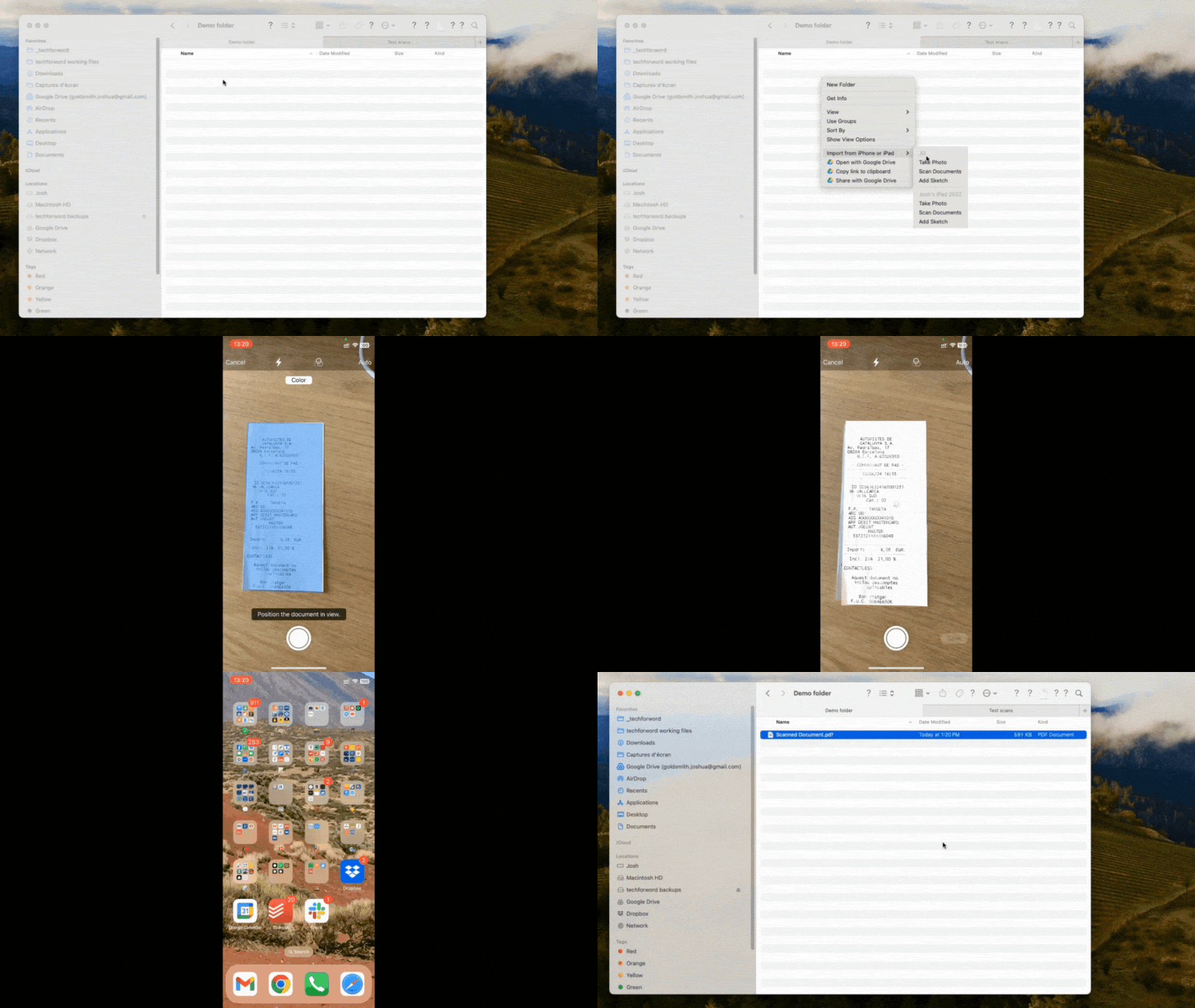
Apple users can scan, annotate, and sign documents using the built-in Notes app.
Notes also offers Scan Text. Tap the Attachments button, choose Scan Text, position your camera over the text, select what you need, and tap Insert.
Apple has expanded its text-recognition language support considerably over the years. Live Text now supports a broad range of languages, while searchable text in Notes images and scans is available for languages including Chinese, English, French, German, Italian, Japanese, Korean, Portuguese, Russian, Spanish, and Ukrainian, with multiple regional variants. Availability varies by language, device, and feature.
Though Scan Text may not be your first choice for digitizing a 50-page contract, it’s wonderfully convenient for extracting a paragraph, address, terminology list, or other short text snippet.
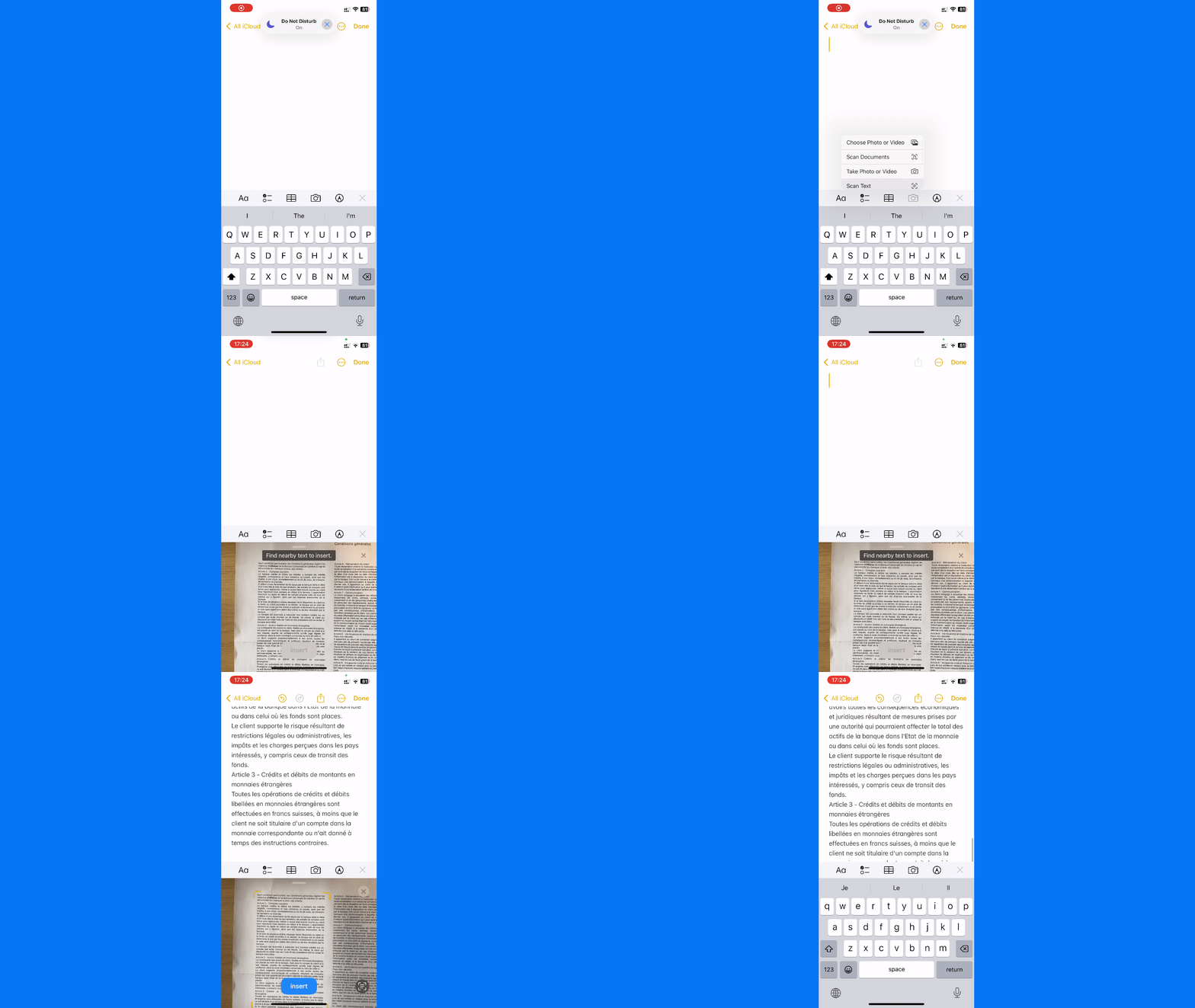
Quickly scan and extract text from documents using Apple Notes.
Optical Character Recognition on the web with Google Drive
As we’ve seen, some scanning apps can make your documents searchable or perform OCR directly. OCR lets you turn text trapped in an image into machine-readable text that you can edit, search, load into a CAT tool, use to digitize paper glossaries, manually extract terminology with a tool like Boothmate, or automatically extract terminology with tools like Sketch Engine or Copilot.
For one of the most useful free multilingual OCR options, grab your computer and open Google Drive.
Upload a JPEG, PNG, GIF, or PDF, right-click the file, and select Open with > Google Docs.
Google converts the image or PDF into editable text in a new Google Doc and supports an extensive list of languages.
Formatting conversion is less reliable than the OCR itself. Google says bold, italics, font size, font type, and line breaks are likely to survive, but lists, tables, columns, footnotes, and endnotes are not likely to be detected correctly.
That makes Google Drive excellent for extracting continuous text, but I wouldn’t count on it to preserve the structure of a complicated glossary, financial table, or heavily formatted contract.

Google Drive offers free multilingual OCR by opening scanned files with Google Docs.
For complex files where layout preservation really matters, consider a dedicated paid OCR tool.
Microsoft Word can also open many PDFs and convert them into editable Word documents. This works best with PDFs containing mostly text; complicated layouts and graphics may not convert cleanly.
And if you’re looking for a dedicated OCR heavyweight, ABBYY FineReader PDF remains a powerful paid option. Current versions recognize close to 200 languages and can export OCR results to formats including Word, Excel, PowerPoint, HTML, plain text, and searchable PDF.
Using ChatGPT to extract text from images
I’ve also had useful results extracting text with ChatGPT.
Take a photo or upload an image and try a prompt like:
“Extract all the [LANGUAGE] text from this image exactly as written. Do not translate or correct it. Mark any characters, words, or sections you are uncertain about so I can review them.”
ChatGPT accepts image inputs on both Free and paid plans, subject to plan-specific limits, and image input is available on the web as well as iOS and Android.
This can be particularly handy on the go: snap a photo, upload it to ChatGPT, and ask it to extract the text.

ChatGPT can extract and work with text from photographed documents.
There is one important caveat. ChatGPT is better thought of as an AI document-understanding tool than as a traditional OCR engine. It can interpret what it sees as well as transcribe it, which is powerful, but it can also occasionally misread or reconstruct text.
⚠️ For anything where verbatim accuracy matters, such as a contract, legal document, quotation, medical material, or speaker manuscript, always compare the extracted text with the original image.
This is especially important for difficult scans, tiny type, unusual layouts, handwriting, and some non-Latin scripts.
Grab your phone and start scanning!
As we’ve seen, you probably don’t need a dedicated scanner app to get started.
If you use Google Drive, Dropbox, or OneDrive, scanning is already built into the mobile app. Apple users have an excellent scanner in Notes.
Google Drive remains one of my favorite free choices for translators because its mobile scanner creates searchable PDFs and its desktop Google Docs workflow provides free OCR across an unusually broad range of languages.
Microsoft users now have a much better native option than this article could recommend in the past: OneDrive includes multi-page scanning, and Microsoft is rolling out OCR that lets you recognize and copy text from scanned PDFs. Meanwhile, the old Microsoft Lens app has been retired.
Apple Notes is an excellent no-download option for iPhone and iPad users, particularly when you want to scan, sign, annotate, or quickly grab a short section of text.
And ChatGPT adds another useful option when you need to extract or work with text from a photograph—just remember to check the output against the source when accuracy matters.
Doing a lot of scanning? My favorite paid app, SwiftScan, remains a powerful step up. It offers automatic edge detection and capture, PDF creation, OCR, smart file naming, workflows, annotation, and automatic upload to cloud services.
SwiftScan’s current OCR supports more than 60 languages and runs locally on the device. Its paid SwiftScan Plus tier also supports automatic cloud upload, including services such as Google Drive, Dropbox, OneDrive, Box, Evernote, and others.
But you don’t need a paid app to stay organized and streamline your mobile office.
Grab the cloud storage or Notes app you already use, scan those receipts, glossaries, contracts, and speaker notes while they’re in front of you, and say goodbye to at least one source of paper clutter.
First published in September 2025. Updated in August 2026.