
Translators and interpreters search the web dozens of times every day. And how you search can make a huge difference.
A few years ago, web research mostly meant typing keywords into Google or Bing and clicking through a list of links.
Today, that’s only part of the picture.
Traditional search engines are still invaluable for finding terminology, official documents, parallel texts, definitions, and real-world usage examples. But Google and Bing can now also use generative AI to synthesize information, answer complex questions, and let you continue your search conversationally.
In this article, we’ll look at how browsers and search engines work together, revisit some advanced search tricks that still save me time, and explore how AI-powered search can help translators and interpreters research faster.
Browsers and search engines: Same thing?
Although it’s easy to mix them up, browsers and search engines are not the same thing.
A browser is an app you use to open and interact with websites. Chrome, Edge, Firefox, Opera, and Safari are browsers.
A search engine helps you find information on the web. Google, Bing, Yahoo, and DuckDuckGo are search engines.
The confusing part? Browsers usually have a default search engine built into their address bar.
For example, Chrome commonly uses Google Search by default, while Microsoft Edge commonly uses Bing. But these settings can be changed.
You can use Chrome to search Bing, Edge to search Google, or another combination entirely.
💡 Pro tip: You don’t need to visit a search engine homepage first. In most browsers, simply type your search directly into the address bar.
Why experiment with browsers and search engines
Browsers differ in speed, resource use, and privacy settings, while search engines not only deliver different results but display them in unique ways.

Google search results on Chrome
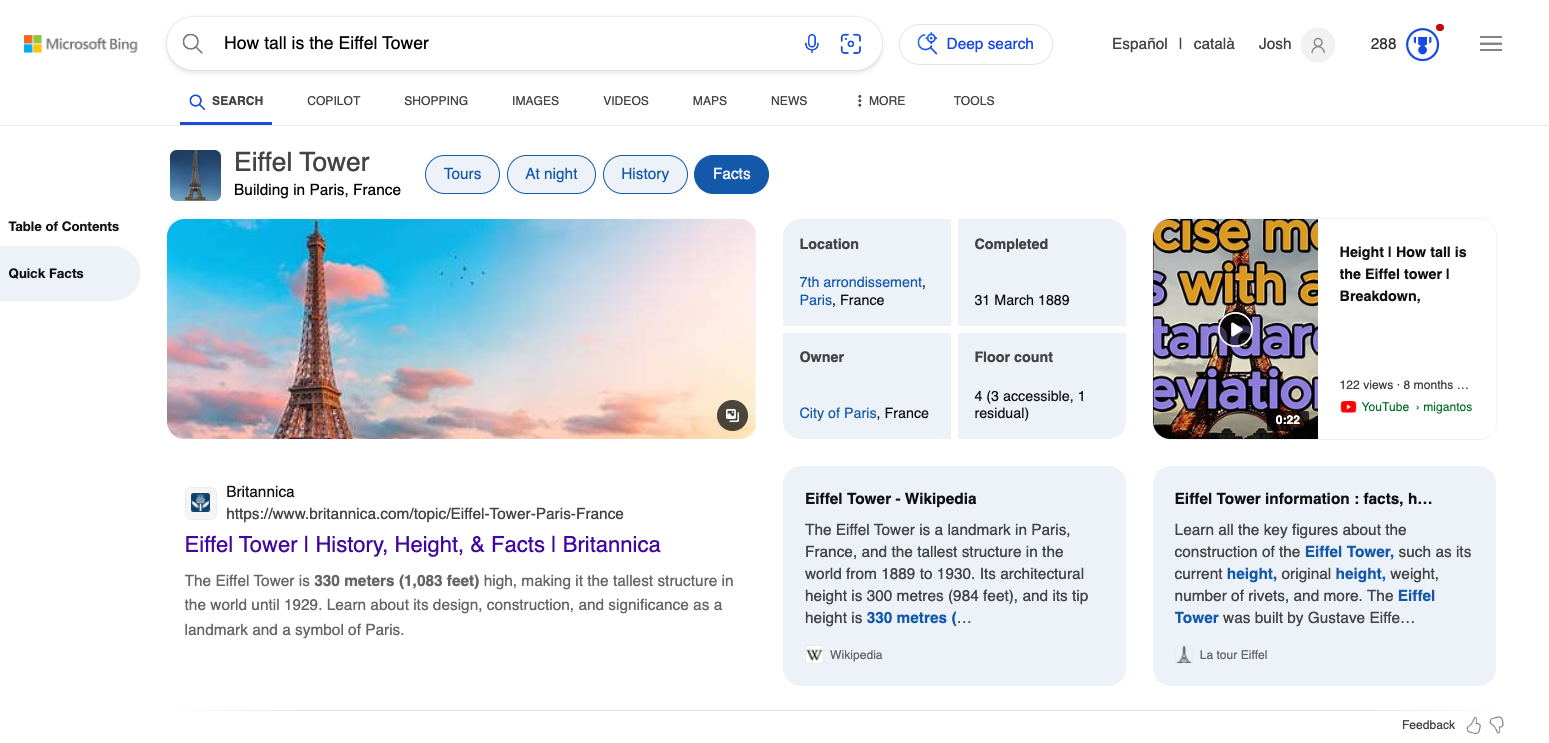
Bing search results on Microsoft Edge
Search engines differ too. Not only in which results they return, but increasingly in how they help you understand those results.
A traditional search might give you:
links
images
videos
news
maps
shopping results
knowledge panels
An AI-powered search can go a step further by:
synthesizing information from multiple websites
answering complex questions directly
suggesting follow-up questions
comparing options
organizing information into tables or lists
helping you refine an ambiguous query
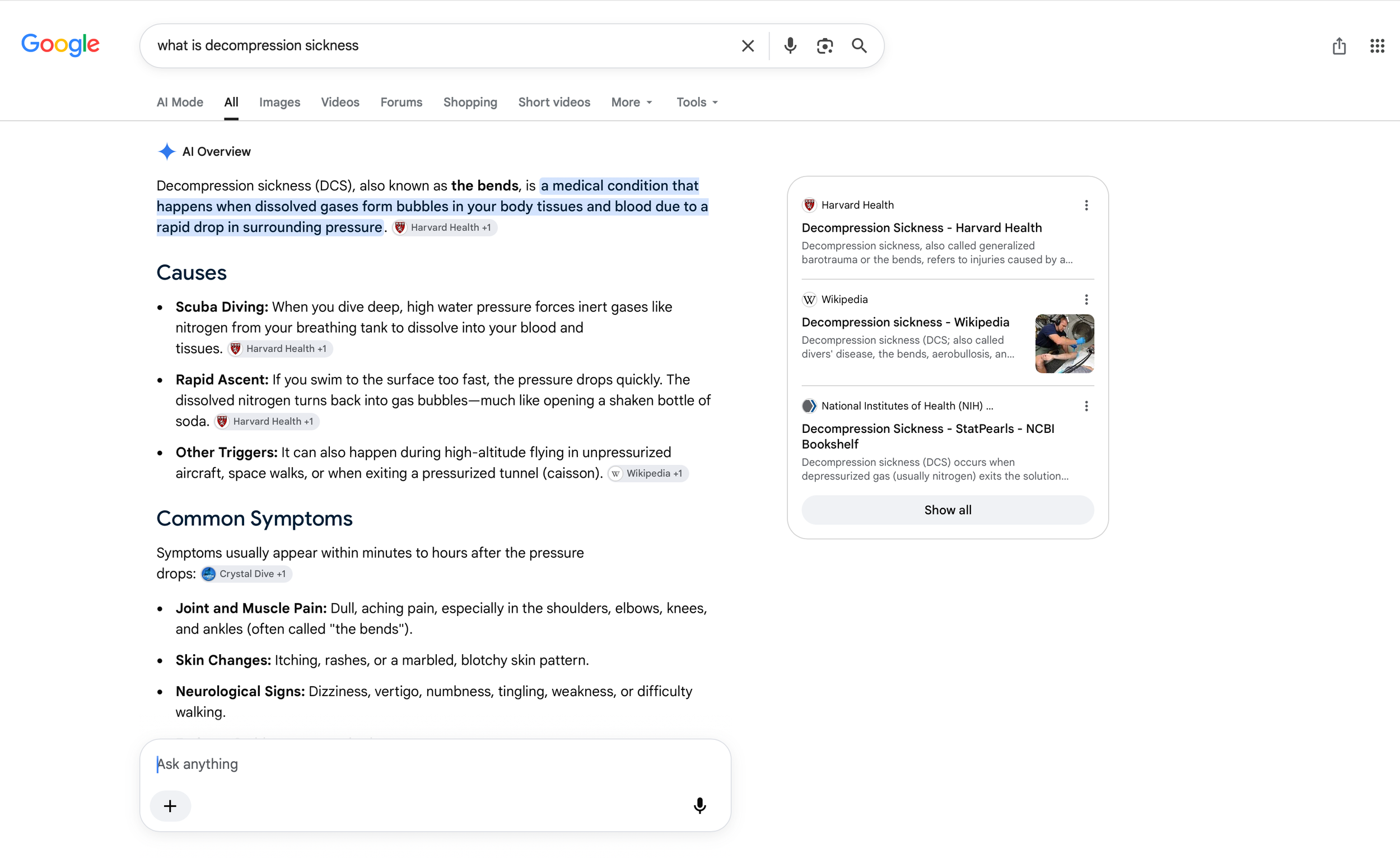
AI-powered search can synthesise information from multiple websites
That means the “best” search tool increasingly depends on what you’re trying to do.
Need to find an official bilingual PDF? Traditional search operators may get you there fastest.
Trying to understand an unfamiliar technical concept before an interpreting assignment? An AI-generated overview might give you a useful starting point.
Researching terminology across several perspectives? A conversational search can help you explore the topic before you dive into individual sources.
⚠️ AI-generated search results can make mistakes. Treat them as a starting point, not a substitute for checking reliable original sources—especially when accuracy matters.
Refine results with advanced search operators
AI search may be grabbing the headlines, but good old-fashioned search operators are still among the fastest ways to find exactly what you need.
Google continues to support several useful operators.
Search an exact phrase with quotation marks
Put a word or phrase in quotation marks to search for that exact wording.
For example:
“hex head structural screw”
This is particularly useful when you’re checking whether a specific translation, collocation, product name, or institutional term actually appears online.
Exclude unwanted results with a minus sign
Place a minus sign immediately before a word you want to exclude.
For example:
“solar system” -education
This can help remove an unwanted meaning, industry, country, brand, or context from your results.
Search one specific website with site
Use site: followed by a domain to restrict results to one website.
For example:
site.eu “carbon border adjustment mechanism”
For translators and interpreters, this is one of my favorite tricks.
Instead of searching the entire internet for a term, you can search:
a government website
an international organization
a client’s website
a university
a professional association
an authoritative terminology source
This is especially handy when you’re trying to find the official wording used by an institution.
Search for specific document types with filetype:
Need reference documents, presentations, reports, or glossaries rather than general webpages?
Use filetype:
For example:
filetype “solar energy” glossary
or:
site.int filetype “antimicrobial resistance”
Google still officially supports the filetype: operator for narrowing results to formats such as PDF, Word, Excel, PowerPoint, and more.
Search before or after a date
Google also supports before: and after: operators.
For example:
“artificial intelligence regulation” after:2026-01-01
or:
“machine translation” before:2020
These can be useful when terminology has changed over time, or you need information from a particular period.
Google accepts years as well as more precise dates.
What about wildcard searches?
You may remember using an asterisk (*) inside quotation marks as a wildcard for a missing word.
Although wildcard-style searches may still sometimes produce useful results, Google no longer highlights this as one of its core documented search operators.
For dependable research workflows, I’d focus on the operators Google still explicitly documents: quotation marks, minus, site:, filetype:, before:, and after:.
And if you want to go deeper into search syntax, check out my article 7 Search Hacks for Assignment Prep.
Maximize Google search with key tools and features
Google’s familiar search filters are still useful. After running a search, you may see options such as:
Web
Images
Videos
News
Shopping
Maps
Forums
Short videos
The exact options vary depending on your query.

Google’s knowledge panel lets you quickly access additional information
Click Tools to reveal additional filters. Depending on what you’re searching for, you may be able to narrow results by publication date or other criteria.
Google also continues to offer Advanced Search, which lets you refine searches by things like:
exact wording
excluded words
language
region
last update
website or domain
where terms appear on the page
file type

Advanced search settings on Google
That makes Advanced Search especially useful if you don’t remember all the operators.
One feature I’d be cautious about using for linguistic research is Google’s estimated number of results.
Those counts have always been approximate, and Google’s interface has changed repeatedly in how, or whether, it displays them.
So if you’re comparing two expressions, don’t treat “X million results” versus “Y million results” as reliable proof that one version is correct or more common.
Instead, inspect the actual sources. Look at who is using each term and in what context.
Meet Google’s AI-powered Search
The biggest change since the original version of this article is that generative AI is now built directly into Google Search.
AI Overviews
For some searches, Google displays an AI Overview near the top of the results page.
AI Overviews synthesize information from multiple web sources into a short answer and provide links so you can investigate further.
They can be useful when you need to quickly get oriented on an unfamiliar subject.
Imagine you’re interpreting at a conference and suddenly need to understand the difference between:
green hydrogen
blue hydrogen
gray hydrogen
Instead of opening half a dozen pages just to grasp the basic distinction, an AI Overview may give you a quick explanation, after which you can follow the links to authoritative sources.
Google explicitly warns that AI-generated responses can contain mistakes, so don’t stop there.
For terminology work, always verify important information against the underlying source.
AI Mode
Google also offers AI Mode, a more conversational search experience.
Rather than entering a short keyword query, you can ask a complicated question in natural language.
For example:
“Give me the main types of wood screws used in residential construction, explain how they differ, and point me to reliable English-language sources.”
You can then ask follow-up questions without starting over:
“Which of those are commonly used for structural timber?”
“Now give me the standard Spanish equivalents used in Spain.”
“Which terminology should I verify because regional usage varies?”
AI Mode can work with text, voice, and images, and it draws information from across the web.
That makes it useful for exploration and orientation.
But for translation or interpreting prep, I still recommend switching back to traditional web results to verify the terminology in reliable first-party sources.
Bing has changed too: Meet Copilot Search
Microsoft has also reworked how AI fits into Bing.
In April 2025, Microsoft launched Copilot Search in Bing, which combines traditional search with generative AI.
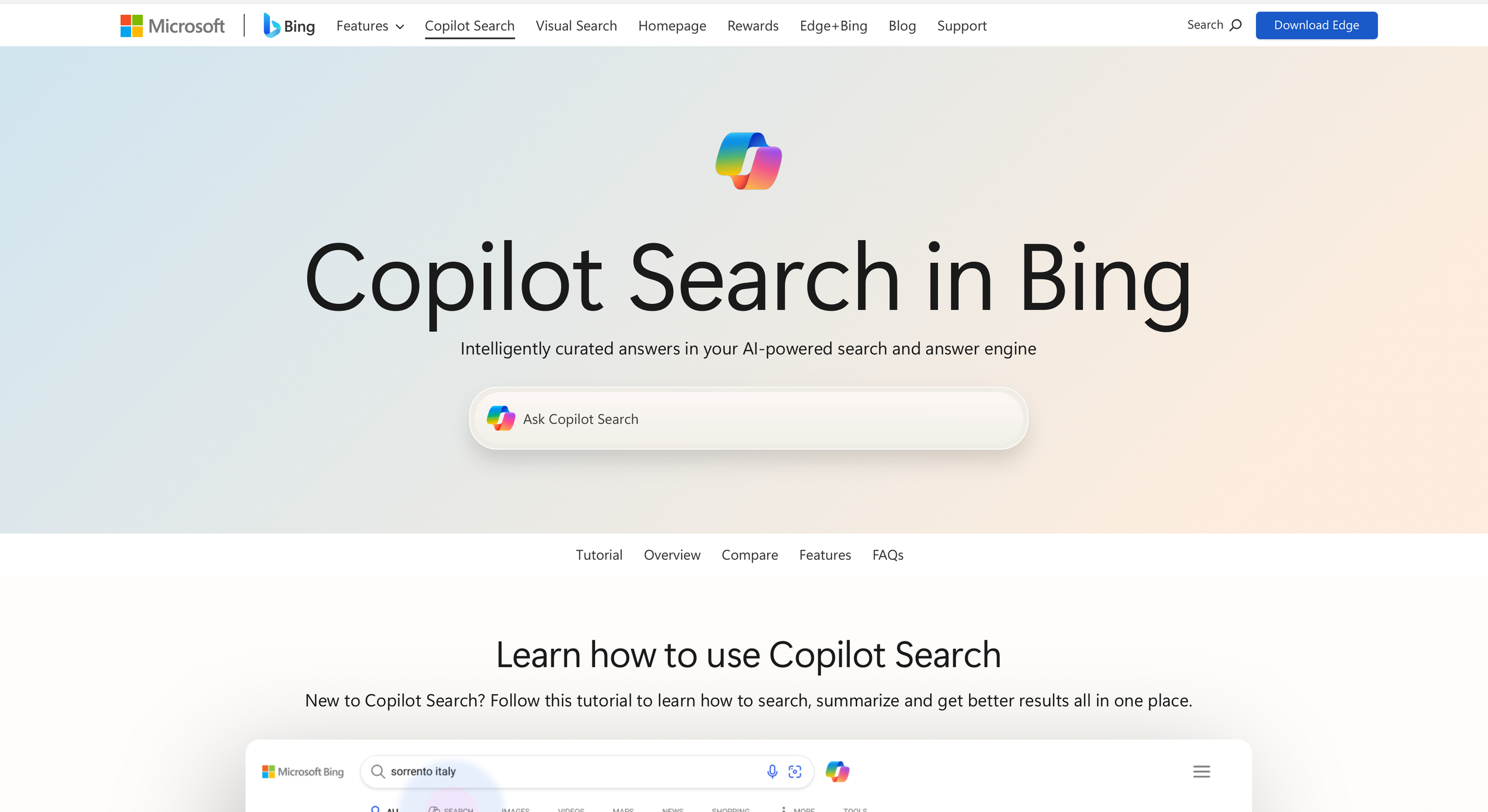
Copilot Search in Bing combines traditional search with generative AI.
Typing a question in Bing’s search box generates additional questions and related searches, as shown below. Bing’s enhanced search bar may even display an AI chatbox with suggested prompts.

Bing’s AI-powered predictive suggestions help users find information faster
Instead of simply returning a list of websites, Copilot Search can provide:
synthesized answers
clearly cited sources
images and videos
related topics
follow-up questions
conversational exploration without starting a new search from scratch
For example, search for:
“types of wood screws”
and traditional Bing can help you find relevant product pages, guides, images, and terminology.
Switch to Copilot Search, and you can ask:
“Compare the most common types of structural wood screws in a table and explain when each is used.”
Then follow up with:
“Add the Spanish equivalents.”
or:
“Which manufacturers use different terminology for these screw types?”
This is much closer to having a research assistant sitting on top of a search engine.
The important distinction is that Copilot Search still shows and cites web sources, making it easier to verify the synthesized answer.
That’s a major improvement over simply accepting an uncited chatbot response.
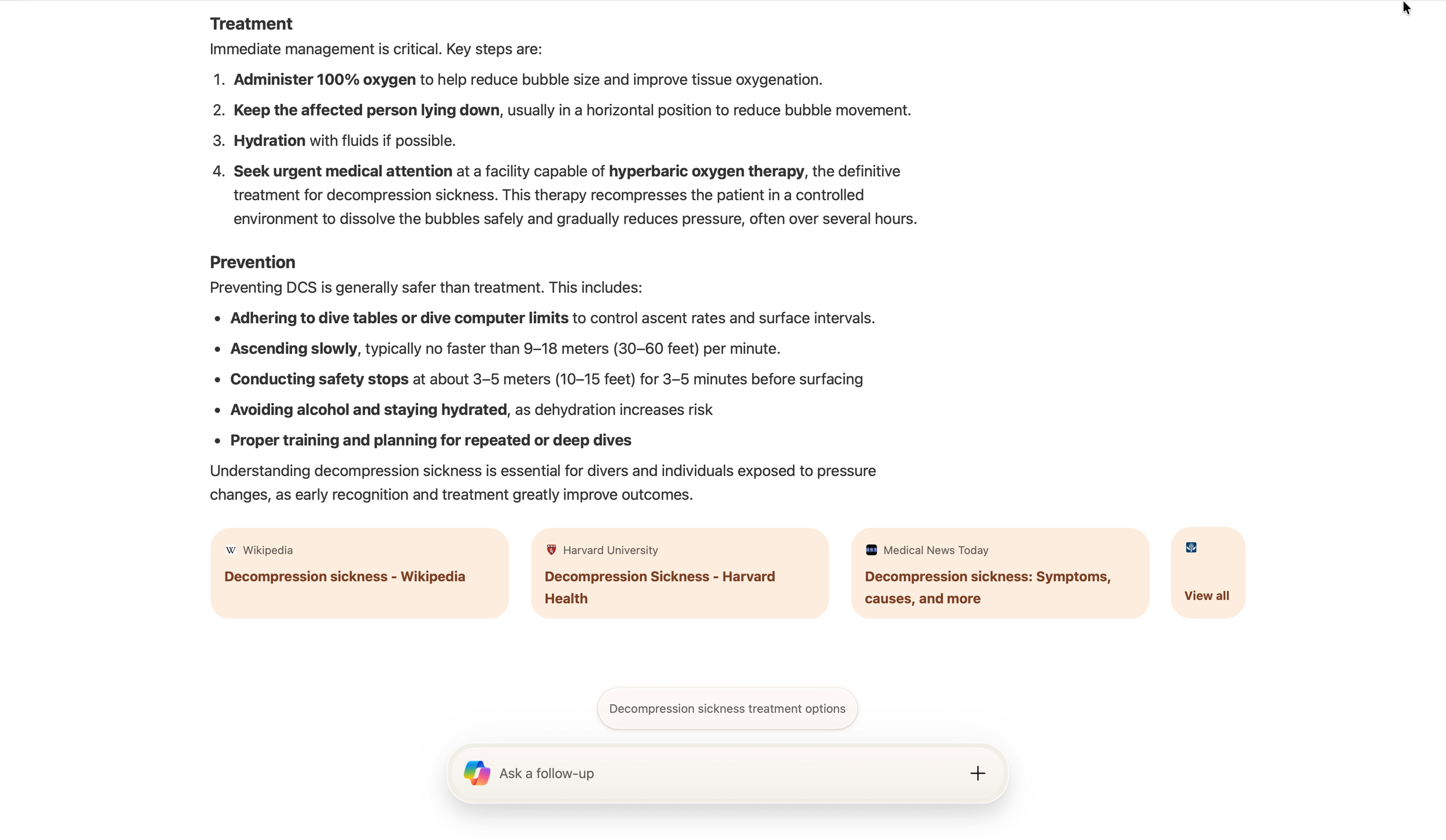
Easily find sources with Copilot Search
If you scroll down Bing's results page, you'll find a 'People also ask' section, along with a selection of images and videos, just like on Google.
Even better, Bing highlights additional content types based on your query, like PDFs. Bing’s videos also have autoplay previews, which Google doesn’t currently offer.
Another exciting Bing feature is deep search, which uses AI to understand the search intent behind the keywords you typed. If the intent is unclear, Bing will ask for clarification – for example, if your search for “solar system” is for astronomy research or solar system education. Deep search results are also more comprehensive, which makes them ideal for complex queries.
What happened to Bing Deep Search?
The original version of this article highlighted Deep Search, an experimental Bing feature designed to spend more time understanding complex queries and exploring possible search intents.
That was an interesting glimpse of where search was headed.
But Bing’s broader AI-search strategy has since evolved, and Copilot Search is now the much more useful feature to focus on.
Rather than recommending that you hunt for a Deep Search button, I’d start with Copilot Search for complex, exploratory questions.
Microsoft still uses “deep search” terminology in some products and experiences, so you may encounter the phrase elsewhere. But it’s no longer the feature I’d build a general Bing workflow around.
Try hybrid searches
One idea from the original article that has aged particularly well is the hybrid search.
Instead of treating a search engine query as a handful of disconnected keywords, phrase it more like a prompt.
Traditional keyword query:
“types of wood screws”
More structured query:
“table of common types of wood screws and their uses”
AI-style query:
“Create a bilingual English-Spanish table of common wood screw types, their uses, and alternative names. Cite reliable sources.”
That last version is particularly suited to AI Mode or Copilot Search.
The benefit isn’t just the answer.
A good AI search can help expose the terminology you need to investigate next.
Maybe the response mentions:
lag screws
structural screws
coach screws
timber screws
self-tapping screws
Now you have five more targeted terms to research in authoritative sources.
That’s where AI and traditional search complement each other beautifully.
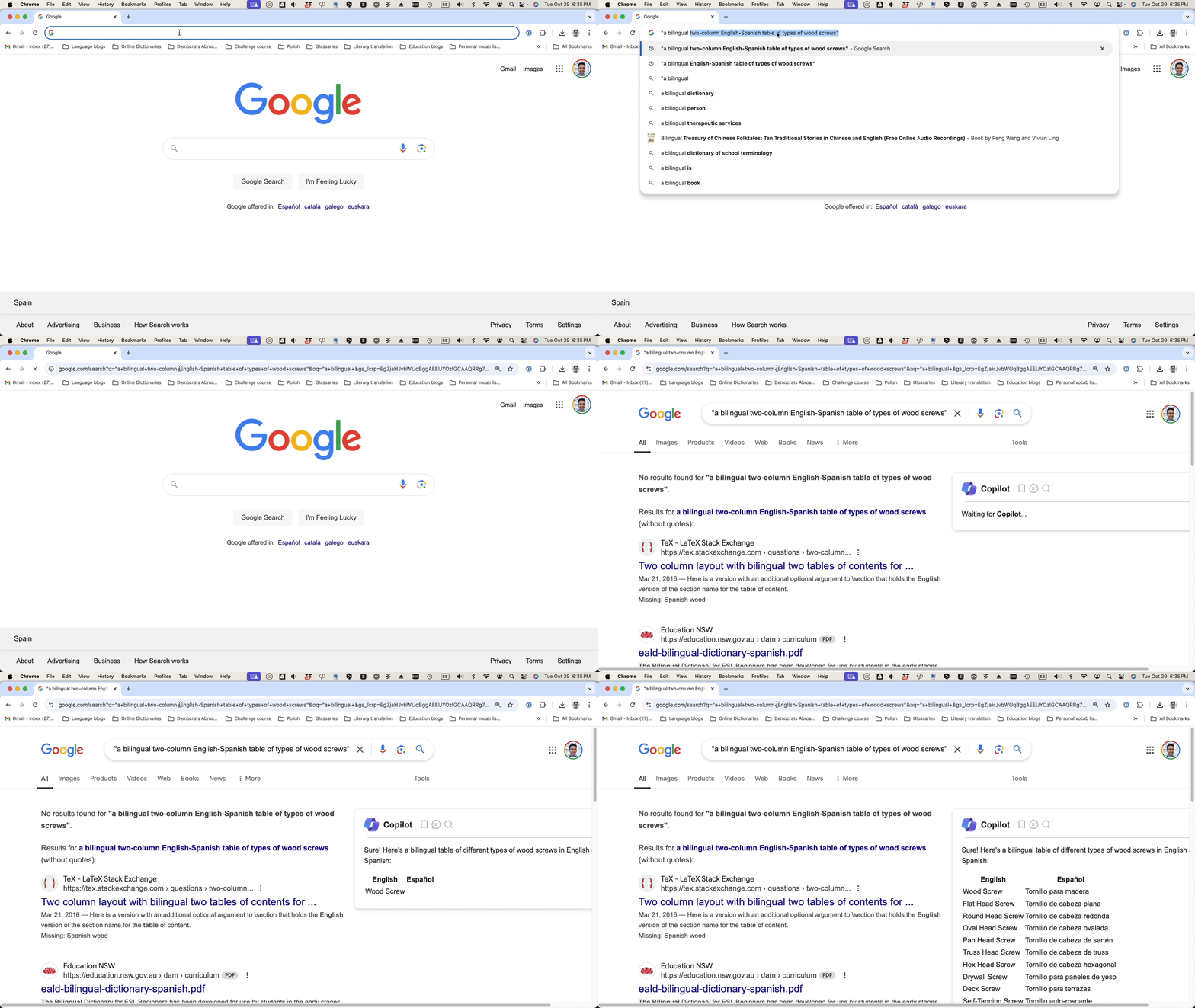
Hybrid search combining AI-powered tools with traditional search methods
Take your search to the next level
Whether you’re in the booth hunting down the title of a speaker’s latest publication or at home scrambling to find the equivalent of a hex-head structural screw before your translation deadline, every minute counts.
Fortunately, web search has become far more powerful.
Google and Bing can still help you locate individual webpages, PDFs, images, and terminology.
But they can now also synthesize information, answer complex questions, and let you continue your research as a conversation.
My advice? Don’t choose between traditional search and AI search. Use AI to explore. Use search to verify.
Learn a handful of operators like quotation marks, site:, filetype:, before:, and after:. Then experiment with AI Mode and Copilot Search when you need to make sense of something more complicated.
And above all, follow the sources. AI can make research much faster. Your professional judgment is what makes it trustworthy.
First published in November 2024. Revised in September 2026.