
7 Search Hacks for Assignment Prep
Search tools are a great complement to AI when it comes to prep – if you know how to use them. In this guide, you'll learn advanced strategies to find official translations, institutional documents, and real-world usage examples.
Discover exactly what to type into Google Search to cut through irrelevant results and find authoritative information.
Plus, we’ll explore how to use specialized tools like Google Scholar and Google Books Ngram Viewer to build technical glossaries and study natural phrasing.
Hack #1: Search one website – not the entire web
Narrow your search to a specific website to find official resources and parallel texts:
Find the site URL. If necessary, do a basic search for the project or organization first.
Search within the domain. Type site: immediately followed by the URL, then add your keywords or phrases. Write multi-word terms in quotation marks.
Examples:
site: who.int “mental health” (to pull official WHO pages or reports on that topic)
site: youtube.com "António Guterres" UN(to find videos of them speaking)
Tip: Add a target language and/or country as a keyword. You can use “OR” inside parentheses to search multiple terms at once.
Examples:
Alternatives:
For websites: Click Tools > Google Advanced Search and enter the URL under "Site or domain."
For videos: Enter your keyword phrase in a standard Google search, then click the Videos tab.
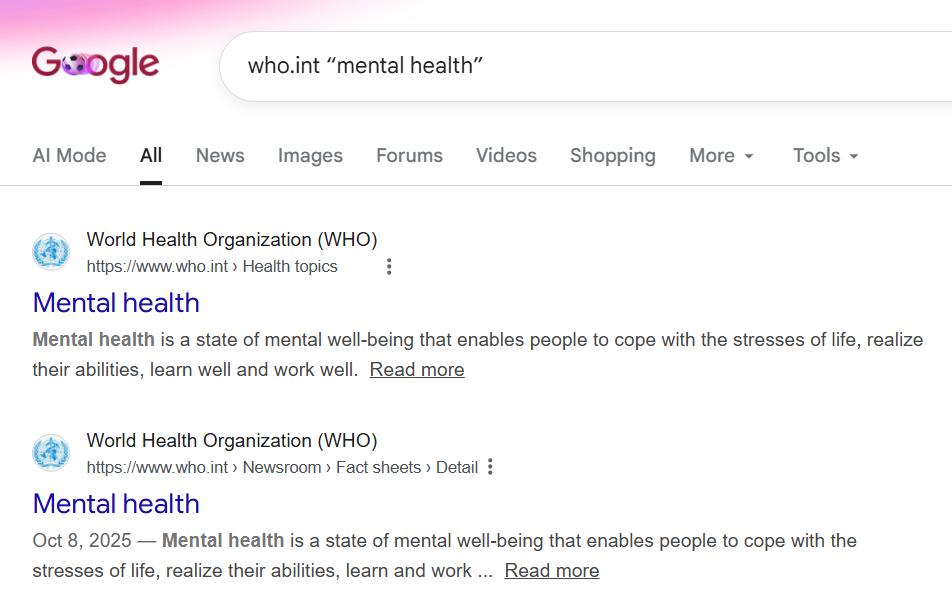
1. Typing site: followed by the URL in the search bar limits the search to that domain.
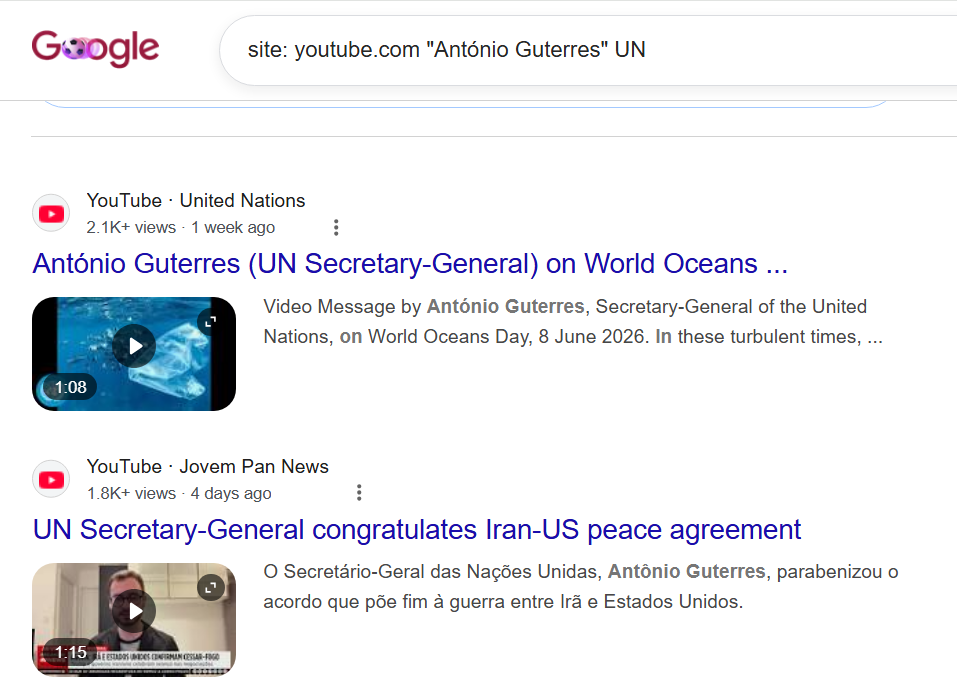
2. A search using site: youtube.com and the speaker’s name pulls video results for that person.
Hack #2: Filter by country
Narrow your search to a specific country domain to locate official documents and resources published in that country.
Find the ccTLD (country code top-level domain) for your target region (here’s a global directory).
Run a search restricted to that country. Type: site: followed by the country code, then add your keyword or phrase.
For example: site:br “climate change” (to restrict results to Brazilian websites)
Hack #3: Search for PDFs only
Limit results to PDFs to find official publications and exclude webpages, blog posts, and other non-official resources.
1. Type filetype: pdf followed by the keyword(s) or keyword phrase.
Example: filetype:pdf “mental health”
2. To search for PDFs within a specific website, combine filetype: with site: and the keyword phrase.
Example: site:who.int filetype: pdf “mental health”
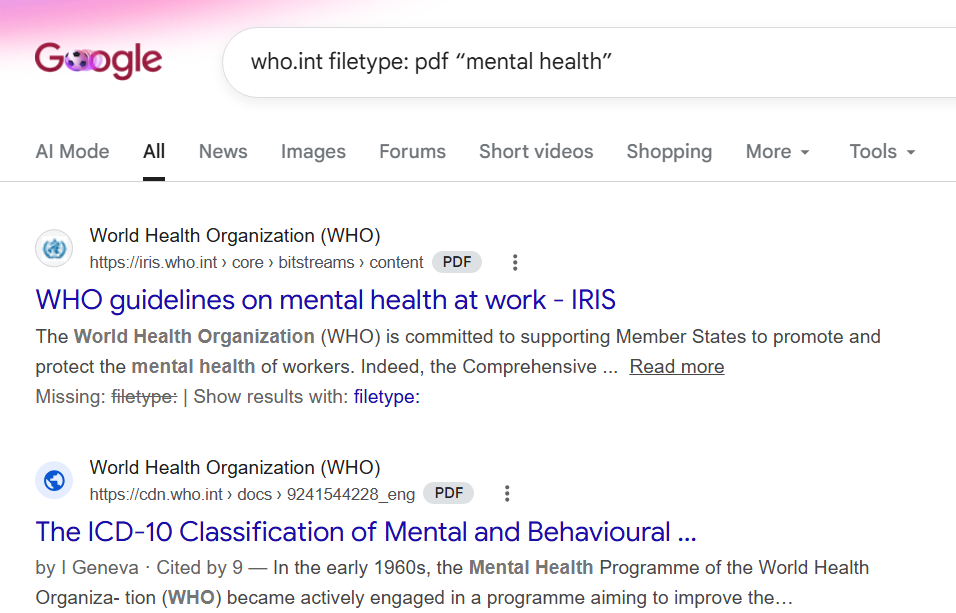
3. A domain-specific search using filetype: pdf surfaces official publications.
Hack #4: Put a time limit on results
Narrow results to a posting period (past hour to past year) to quickly locate recent or breaking information.
Apply the time filter. Run your search keywords, then click Tools > Any time in the Google search menu to select your desired timeframe.
Alternatively, you can type after: or before: directly in the search bar, followed by a date (YYYY-MM-DD) or year (YYYY). For example, lula after:2025
Use case: Before an assignment, search the speaker or organization's name and filter for "Past Month" to surface their most recent public statements – useful for picking up on current talking points, terminology, or phrasing they've been using.
Hack #5: Use an asterisk to replace a missing word
Forgot one of the words in a common idiom or official campaign slogan?
A wildcard search lets you search a phrase using an asterisk (*) as a placeholder for the missing word or words. You'll need to know where the gap falls in the phrase, but the asterisk can stand in for more than one word.
Example: add * to injury (Google will fill in the blank to surface the full idiom: "add insult to injury")
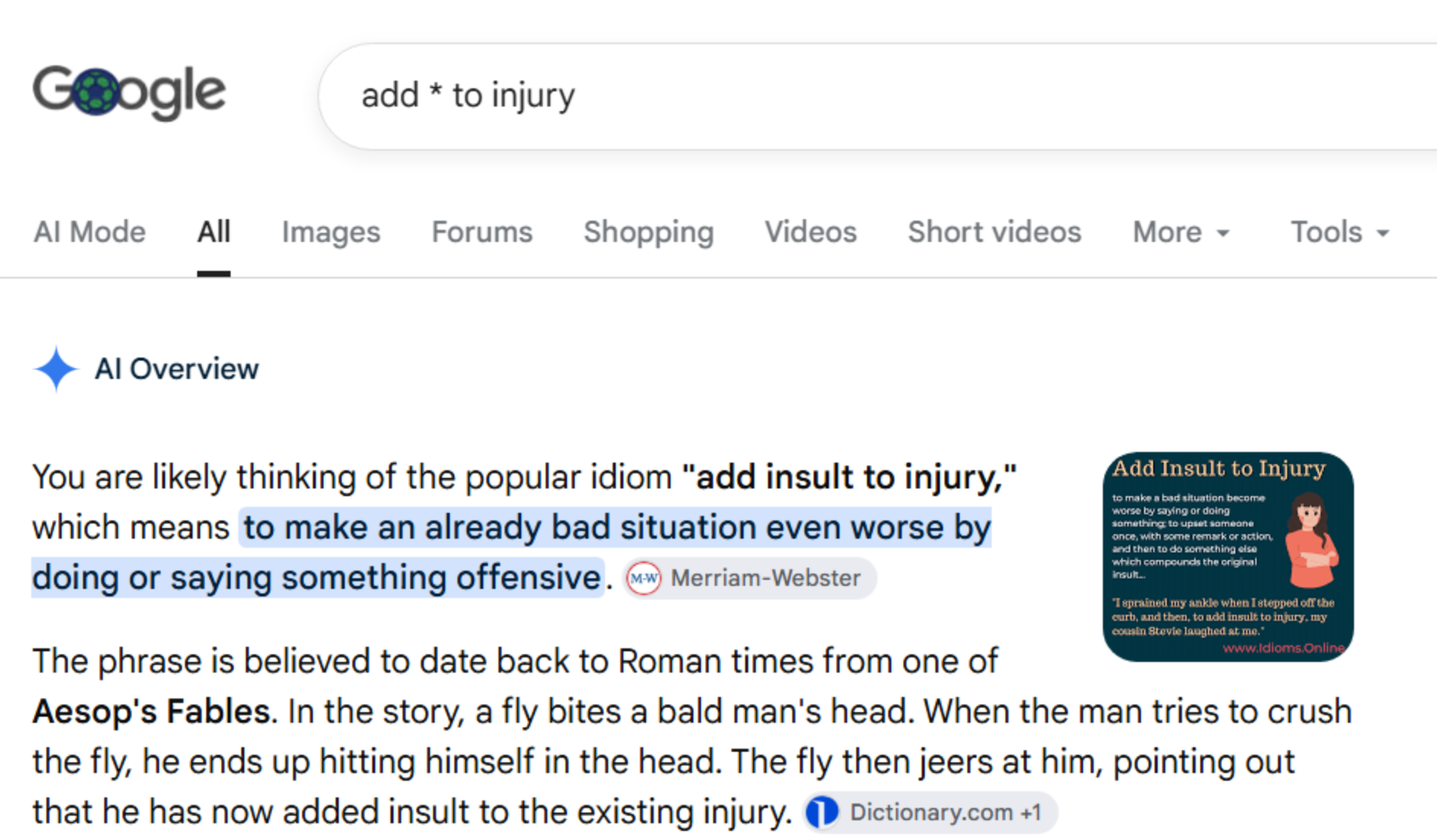
4. A wildcard search for add * to injury surfaces the missing word to complete the idiom.
Pro tip: Add “-ai” to your search query when searching to hide AI Overviews.
Hack #6: Mine academic papers for terminology
Use Google Scholar – a search engine dedicated to scholarly literature – as a fast-track method for building technical glossaries, especially in the medical or legal fields.
Enter your keyword or keyword phrase
Locate a paper that’s highly relevant to your assignment
Click Related Articles directly underneath the search result snippet
Mine the abstracts of the first 10 articles to extract terminology
Hack #7: Find the most common variation
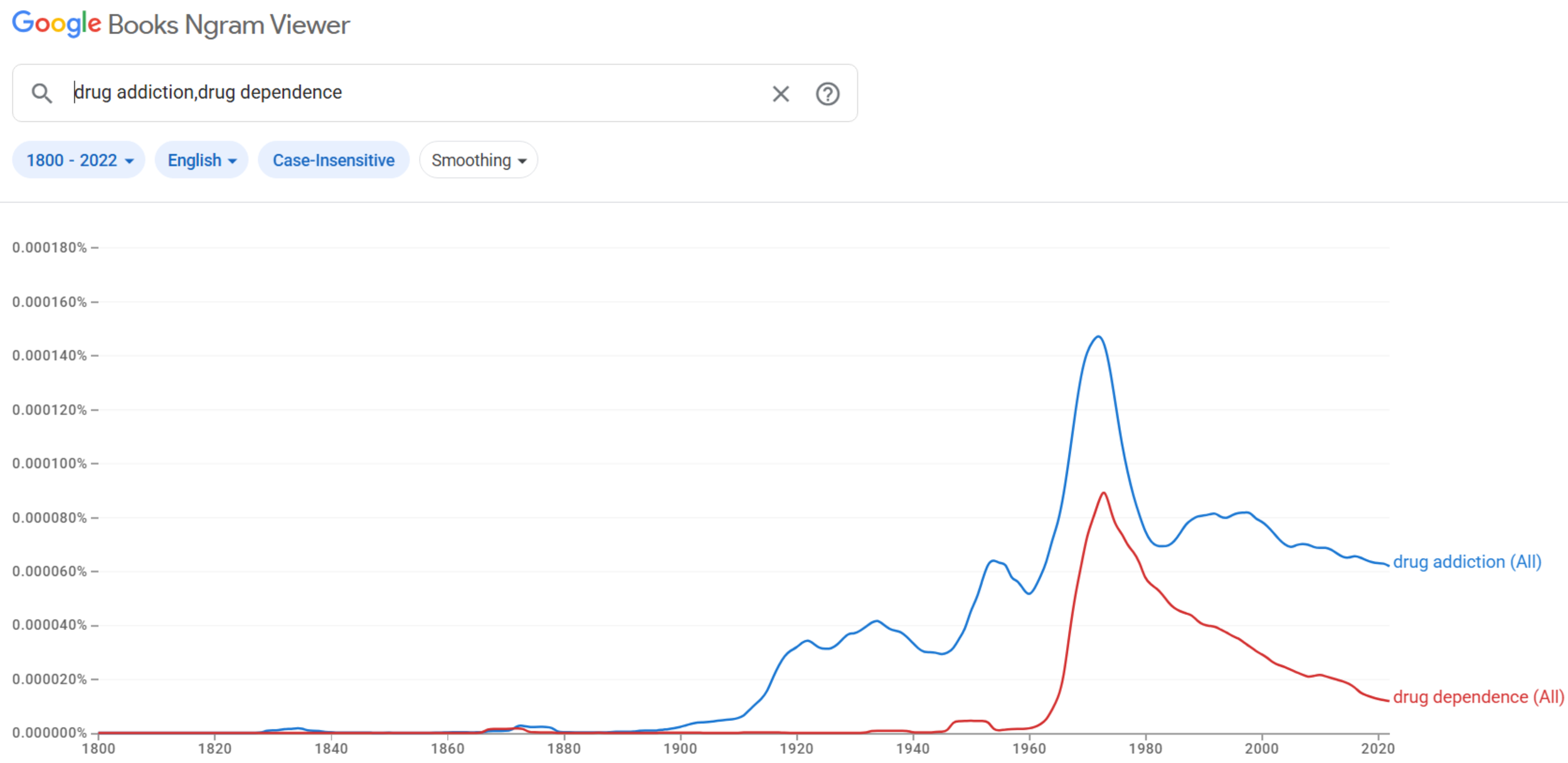
5. Historical frequency trends revealing a steady decline in the usage of “drug dependence” after 1980.
Children’s rights or rights of the child? Freedom of speech or freedom of expression? Women’s empowerment or empowerment of women?
Let Google N-grams – a search engine that charts the frequency of words and phrases in digitized books over time – decide for you.
Enter 2-12 variations separated by a comma
Choose years (from 1800 to 2022)
Choose corpus (English, American English, British English, Chinese, French, German, etc.)
Check Case-Insensitive to include lowercase, title-case, and uppercase matches
Leave smoothing at 3 (default)
Bonus Hack: Use Juremy for EU Terminology
Use Juremy (which I wrote about here) to search EU legal and terminology databases. Juremy returns bilingual results side by side, in any combination of the EU's 24 official languages.
Choose a language pair
Enter an acronym, keyword, or keyword phrase
Filter by domain, source of law, court, date, or document type
That's it – go put these to work on your next assignment!
Want more? Join our Insiders community for live webinars and self-paced training on topics like this.