
Projects: How I Query Multiple Files at Once in ChatGPT and Claude
AI is great at analyzing and cross-referencing documents. That's why, when working with multiple reference documents for an assignment, I group them in ChatGPT or Claude using Projects.
Saving reference docs in a Project means I don't have to open and search them individually or re-upload them for a new chat. The files stay ready to query whenever I need them. When I have a question, I ask it in the Project chat.
Projects also let me check my work against all the references at once – instead of going through each one manually, the AI flags inconsistencies and helps me stick to the rules.
When to use Projects
Projects are useful for:
Preparing for an interpreting assignment
Translating with a style guide or glossary
Working across multiple files under pressure
How to set up a Project on ChatGPT
Step 1
Look for Projects in the sidebar. (You may need to open the sidebar first.)
Click New Project.
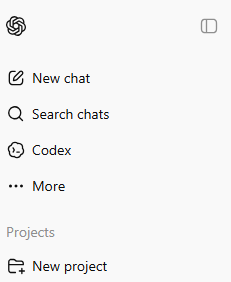
Projects in ChatGPT
Step 2
Name your Project.
Click the smiley face to add an icon or color.
Click Create Project. The Project will appear under Projects in the sidebar.
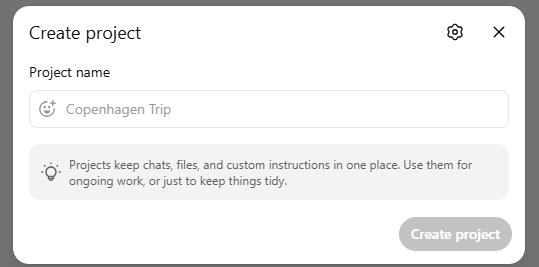
Create project window
Step 3
Click the Project name to open the Project settings.
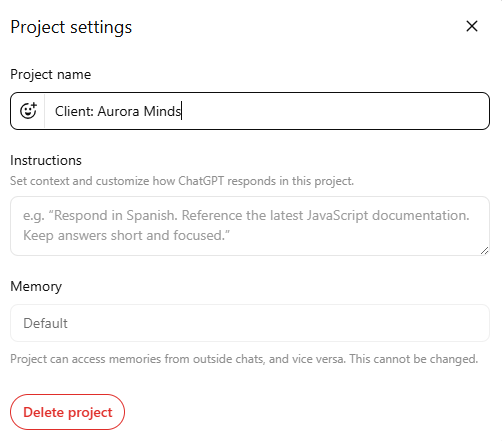
Project settings window
Add Instructions to the Project. For example:
Role: Act as a professional [language A] <> [language B] translator with expertise in the subject matter specified in the project files.
Style: Follow the uploaded guide strictly (tone, register, punctuation, capitalization).
Output: Provide a clean final text unless otherwise requested (no explanations or commentary)
Step 4
Click Sources, then Add Sources to upload reference materials. You can upload up to 5 files on a free account.
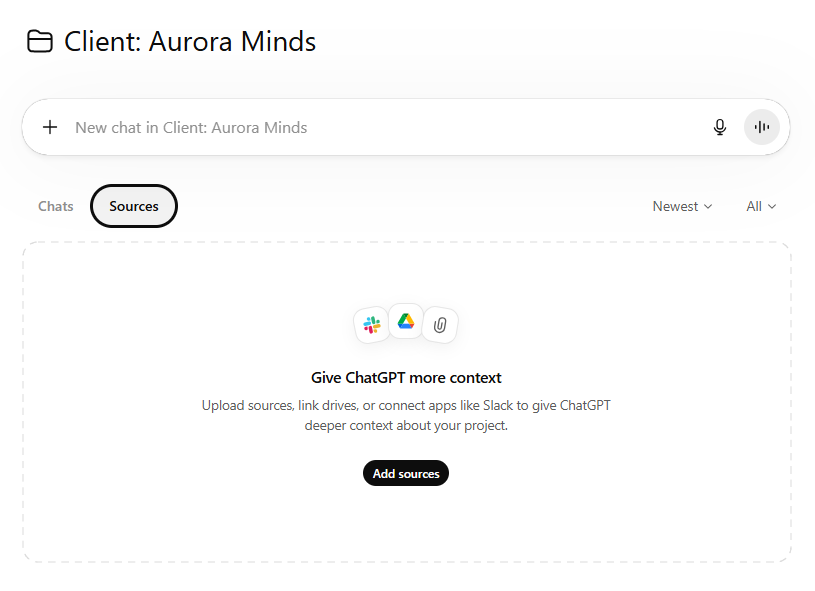
Add sources window
Step 5
Start a chat in the Project.
You can ask a question about an uploaded document (e.g., What does [source 1] say about [topic]?)
Or ask ChatGPT to complete a task using the sources as references. For example, upload a document and ask it to translate it using your glossary and style guide.
How to set up a project on Claude
Step 1
Click the Projects icon (stacked folders) in the sidebar.
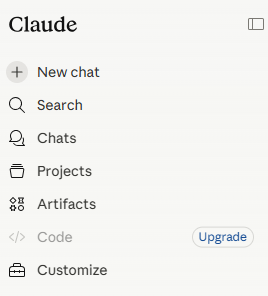
Projects in Claude
Step 2
Click New Project.
Step 3
Name the project. Add a description if needed.
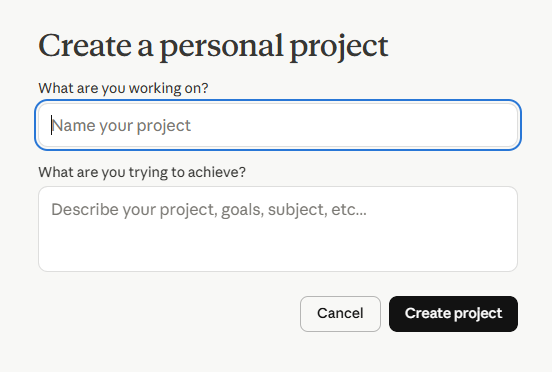
Create a personal project window
Step 4
In the right panel, find Instructions and click the + sign. Add guidelines for how Claude should work. For example:
Role: Act as a professional [language A] <> [language B] translator with expertise in the subject matter specified in the project files.
Style: Follow the uploaded guide strictly (tone, register, punctuation, capitalization).
Output: Provide a clean final text unless otherwise requested (no explanations or commentary)
Click Save instructions.
Step 5
Find Files below Instructions, then click the + sign.
Click Upload from device to add files or Add text content to type or paste text. You can also upload sources from GitHub or Google Drive.
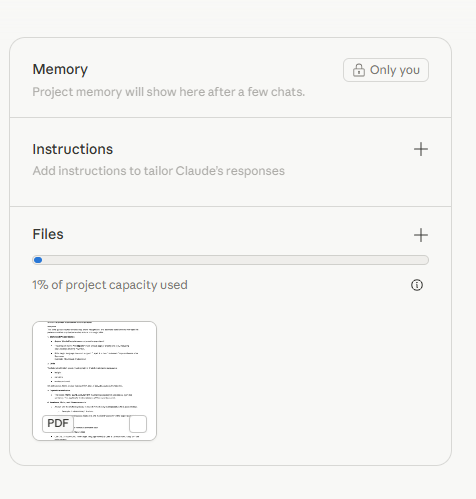
Add instructions and files to a project on Claude
Step 6
Start a chat within the project using your sources as references.
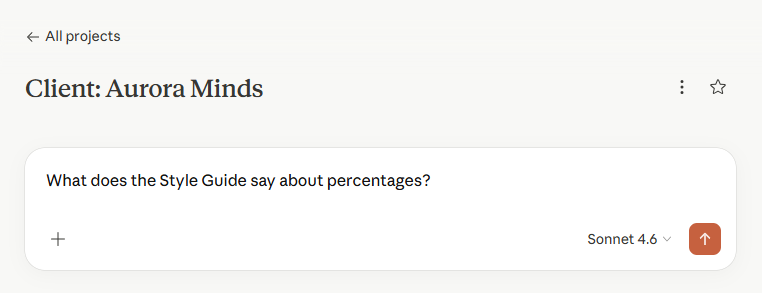
A project chat on Claude
Tips
1. To save time, create shortcuts and add them to the instructions. For example:
When I say SG followed by a string of text, interpret that to mean “What does the style guide say about [string of text]?
Or
When I say GL followed by a string of text, interpret that to mean “What is the target glossary term for [string of text]?
2. For best results, upload detailed prompts as sources. Then add instructions like: “When I prompt you to ‘QA [document, text etc.], reference the ‘QA prompt’ document for instructions.”
3. To protect client confidentiality, always opt out of improving the model. In ChatGPT: Settings > Data Control > Turn off “Improve the model for everyone.”In Claude: Settings > Privacy > Turn off “Help improve Claude.”
Create an easy way to work with multiple files in ChatGPT or Claude. I use them to query files, QA translations, and maintain consistency across documents.
It saves time and works well most of the time – but it isn’t infallible, so I still recommend verifying the output.
If you found this helpful, there’s more in the techforword insiders community, where I host webinars to help translators and interpreters get more out of technology.