
The Rise of the Agentic Browser: A First Look at Comet
We've already looked at how AI is revolutionizing online search, and how browsers like Chrome and Edge have evolved from page loaders to content synthesizers by adding generative features. But the real revolution is agentic browsing – where browsers go beyond synthesis to actually execute tasks on your behalf.
In this post, we dig into Comet (from Perplexity), the first agentic browser available for Windows, Mac, and Android.
AI as add-on vs AI as foundation
Comet is currently available on Windows, MacOS, and Android
Unlike Chrome and Edge, where AI sits in a side panel, Comet is built on AI as its foundation. The AI isn't just reading the page the engine has loaded – it's driving the engine.
This gives Comet three superpowers:
Cross-tab memory: the ability to see what's happening across all your open tabs simultaneously
Agency: the capacity to map out an action plan
Autonomy: the ability to execute that plan without manual supervision
Does that mean it can do whatever it wants without checking with you first? Thankfully, no. Agentic browsers only act after being given a goal or prompt, and there are guardrails in place to prevent them from taking consequential actions without your consent.
For example, when I asked Comet to buy my favorite author's book on Amazon, it opened the Amazon page with the novel as the top result – but it didn't complete the purchase.
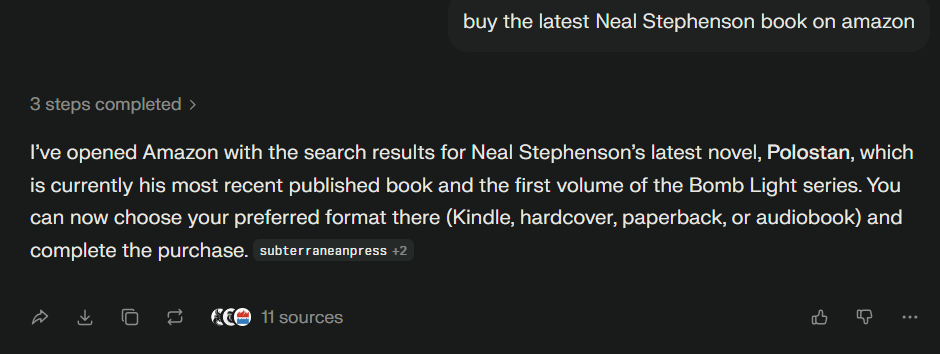
Comet will find an item on Amazon, but won’t buy it for you
It saved me from opening a new tab, typing the URL, searching for the author, and filtering the results, though. Pretty neat!
That said, agentic browsers can take consequential actions without double-checking first if 1) the prompt implies permission and 2) the browser has the necessary site integrations to do so. Comet currently connects to Gmail, Google Calendar, and Outlook — so that’s where it can take autonomous action if you let it.
Putting Comet to work
Now that we’ve explained how Comet works, let’s look at how its agentic capabilities can make your translation or interpreting workflow more efficient. Time saving, here we come!
1. Extract terminology without manual searching
Terminology research can be a time drain. Here’s how Comet tackles it autonomously.
Say you visit a website often and know there’s a page within the architecture that deals with a particular topic – for example, a “tailings management” section on a mining company’s website.
That’s all the context Comet needs to get to work. Because it’s driving the engine, it has the agency to navigate the site’s structure, find the relevant page, and extract the technical terms into a bilingual glossary – all without you ever leaving the search interface.

Adding the company name or the website URL gets best results
This is different from using Copilot in Edge. In Edge, you have to find the page yourself before Copilot can help. In Comet, you give the command, and the browser handles the “legwork” of navigation and extraction autonomously.
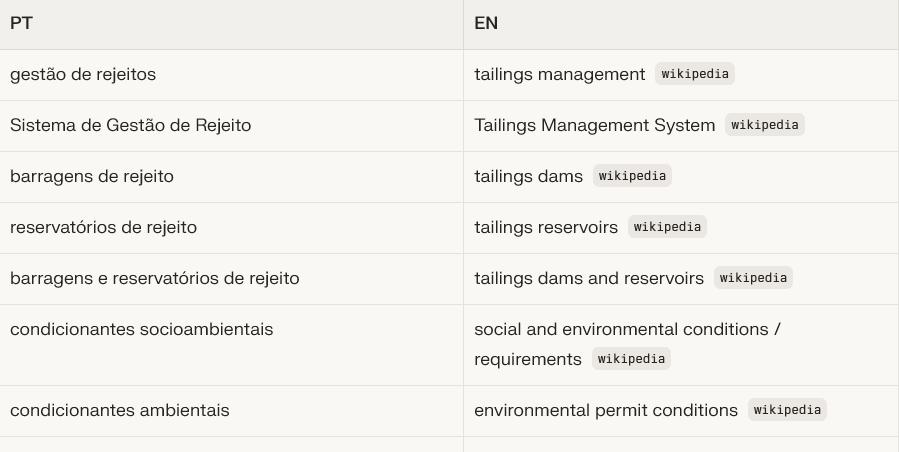
Comet visited the page and extracted these terms for me
2. Transcribe audio and video files
Comet includes transcription as a native, built-in capability – something no other browser offers. You can upload a file directly or choose one from Dropbox or Google Drive (for Pro users).
I tested this with a 30-minute audio file, and it worked like a charm. Comet almost instantly provided an accurate transcript with speakers labeled – which I could then download, copy, or use as a starting point for other tasks such as terminology extraction.
The caveat? Comet currently limits file uploads to 40 MB. While my audio file was within that range, any video longer than 5 minutes would have hit that ceiling. Keep that in mind before you try uploading a full conference recording.
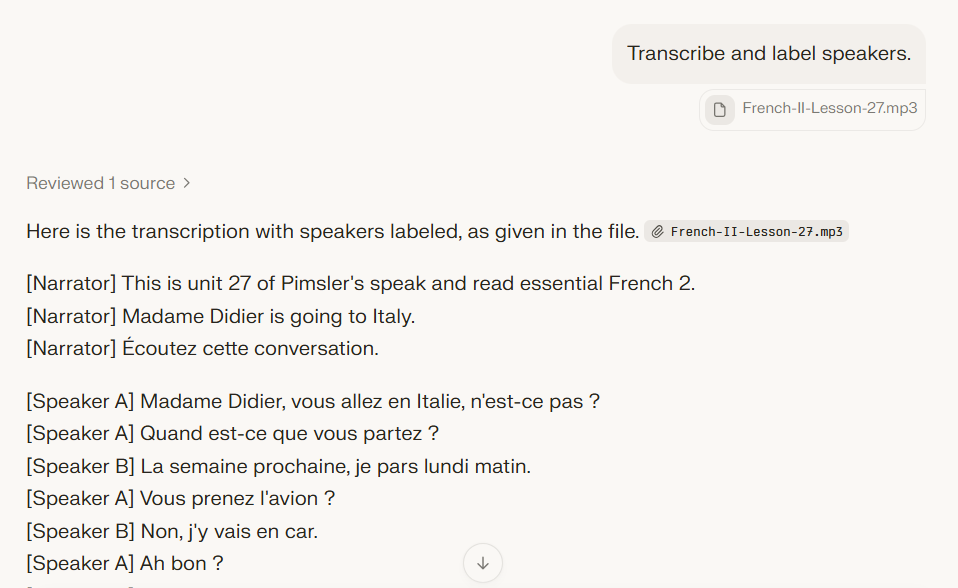
A transcript of an audio file
3. Summarize and extract terms from all open tabs
I don’t know about you, but I often end up with 16 tabs open for the same research topic. With Comet, you can summarize the key points and create a glossary from all of them at once, leveraging the cross-tab memory I mentioned earlier. This is a powerful way to synthesize vast amounts of reference material in seconds.
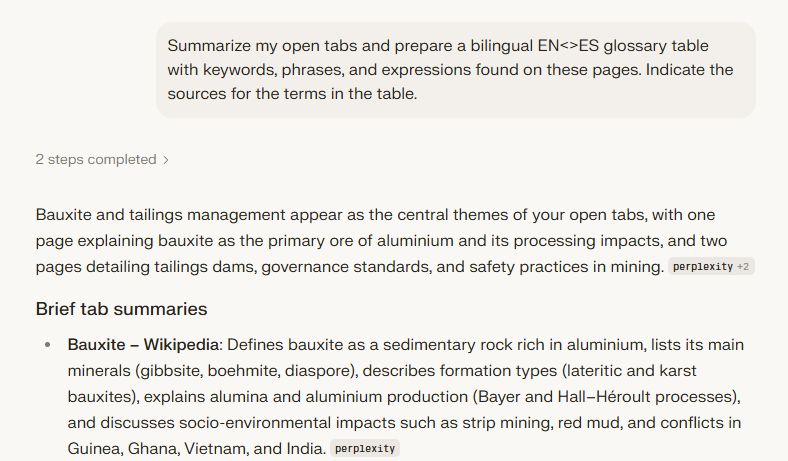
Comet summary of open tabs
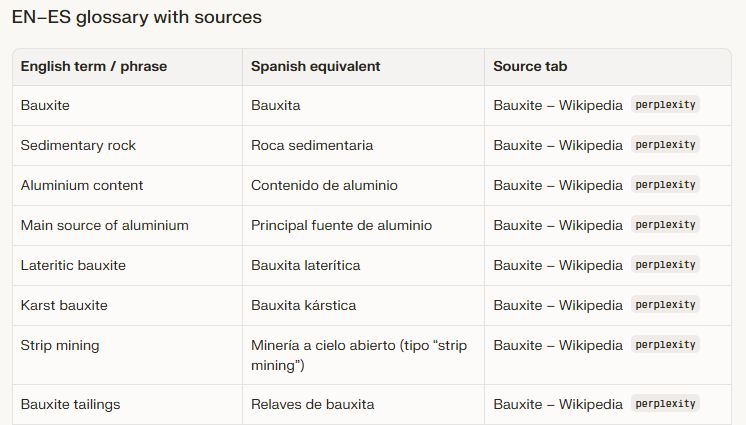
Glossary of key terms from all open tabs
4. Extract terms from YouTube videos with timestamps
Preparing to interpret onsite? Many companies have walking tours of their plants and factories on YouTube. If you find a relevant video on YouTube and it includes a transcript, you’re in luck. You can ask Comet to create a timestamped summary of the video with the technical terms mentioned, along with their definitions. Seeing what tools and machines look like ahead of time – at the exact moment they’re being named – is super handy for memorizing these terms.
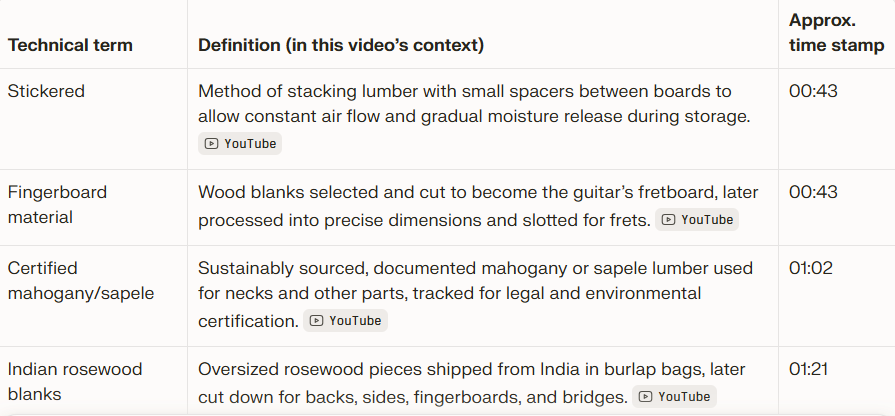
A technical terms-table with timestamps
💡 Note: The timestamps are “ballpark” rather than frame-perfect, but still a huge time-saver.
5. Organize your research into “Spaces”
Once you’ve gathered all this research, Comet lets you organize it into Spaces. Spaces function as folders where you can store files, links, and multiple chats (called threads) related to the same client, project, or domain.
You can set up custom instructions for each individual Space. For instance, in one Space, you can tell Comet to work only in Catalan and English; in another, English and French. These preferences apply across all content in that Space until you change them – which means Spaces are a simple way to ensure your research remains a searchable, reusable asset for the future without having to move your data to a separate app.
Tips for using Comet safely
Ready to take Comet for a spin? Before you do, here are two things I strongly recommend:
1. Opt out of model training. Perplexity uses your searches to improve AI models by default. To protect your privacy and your clients’ confidentiality, go to Account & Settings > Preferences > AI data retention and turn this setting off. NEVER share confidential client information before completing this step.
2. Connect with caution. Comet can link to your email and calendar via Account & Settings > Connectors. While this is convenient, be aware: tech journalist Victoria Song tested Comet and other agentic browsers and found they often mistook spam for high-priority mail because of keywords like “Urgent!” You don’t want to miss a real client inquiry because the AI misjudged their email as unimportant.
The verdict
Comet is a genuinely exciting tool for language professionals. Whether you’re extracting terminology, transcribing audio, synthesizing research across multiple tabs, or prepping for an onsite assignment, the time savings are real, and the learning curve is minimal.
Comet is free and available for Windows, macOS, and Android. Why not take it for a spin? 👉 Download Comet from the Perplexity Comet Hub. 👈
This post is based on our techforword insiders webinar titled AI in Your Browser: What’s Useful for Language Pros and What’s Not. For a deep dive into this topic, check out the full recording in the Insiders library.
Not an insiders member yet? Join now and get access to a full library of practical, tested resources for forward-thinking translators and interpreters.