
How to Use AI in Chrome and Edge for Faster Research and Prep
AI is changing how we search for and consume information.
Search now looks less like clicking links and scanning pages, and more like getting summaries drawn from multiple sources in one place.
It looks less like entering keywords and more like starting conversations.
And rather than running multiple searches to get the exact information we need, we can now ask multi-faceted questions – like “affordable vegan restaurants in downtown Washington DC that are open for lunch and have outdoor seating” – get relevant answers, and follow up as needed.
This is all thanks to generative browsing, which turns search engines into more than link retrievers and browsers into more than page viewers. Powered by AI, they can synthesize information and deliver direct answers on any topic, from almost any angle – with potential for follow-up wherever your curiosity takes you.
What does this mean for translators and interpreters? Smarter, faster ways to research and prep using the AI tools built right into your browser.
In this post, we’ll dive into the AI features in Chrome and Edge.
AI features in Chrome
Get quick answers with AI Overviews
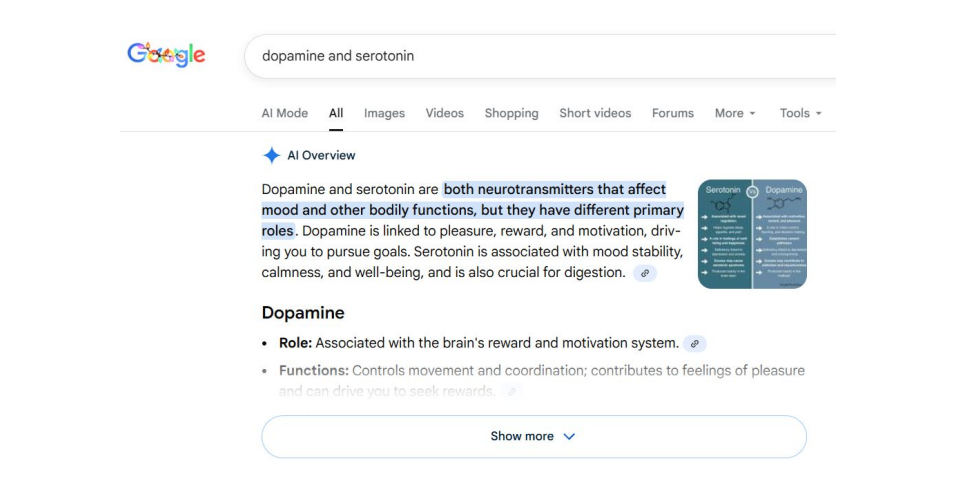
AI Overviews appear at the top of Google search results
What it is:
AI Overviews are short summaries that appear at the top of some Google search results. They use public web content to provide quick, general answers to a query.
Why it’s useful for translators and interpreters: AI Overviews are handy when you need answers fast – say, in the middle of an interpreting assignment or during last-minute prep.
They’re ideal for getting a quick sense of an unfamiliar topic and orienting yourself before digging deeper. (Think of them as a greatest-hits album.)
AI Overviews can make mistakes, and critics argue they discourage users from visiting original sources. (Here’s how to turn them off.)
Things to try:
Ask about something you know nothing about – for example, “What are sea parrots?” – and read the AI Overview. Then decide if you want to dive deeper.
Turn search into a conversation with AI Mode
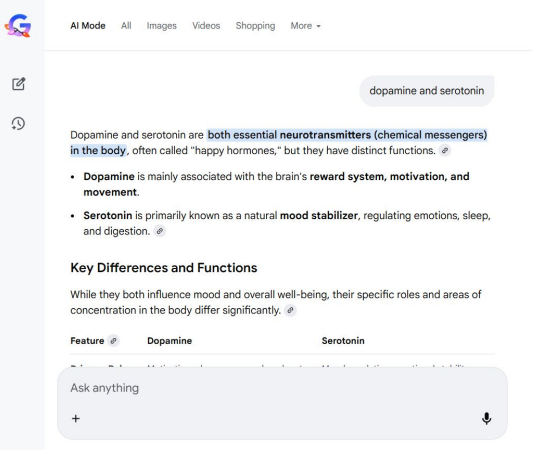
AI Mode opens a chat
What it is:
AI Mode turns the traditional list of search results into a chat-style interface. Your original query becomes the starting point for an ongoing conversation.
Why it’s useful for translators and interpreters:
AI Mode helps you build understanding by letting you ask follow-up questions and shape the answers in the way you need – for example, as a glossary or an interpreter’s package.
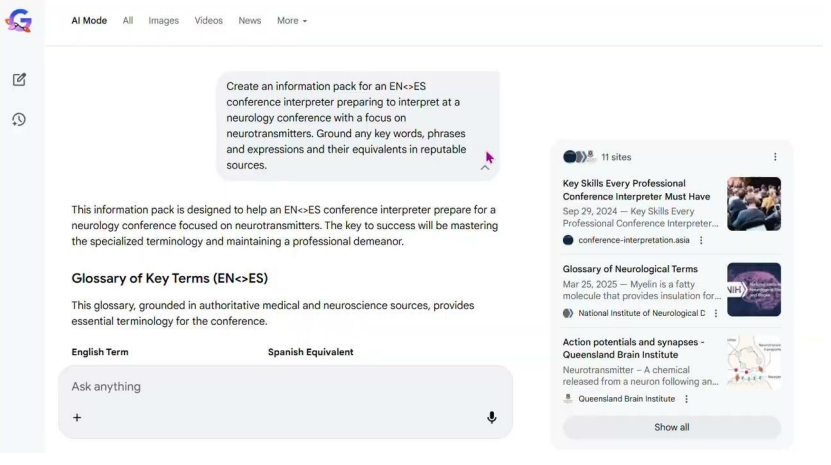
AI Mode can create glossaries for you
How to access it:
Option 1. Click the AI Mode button on the Google homepage.
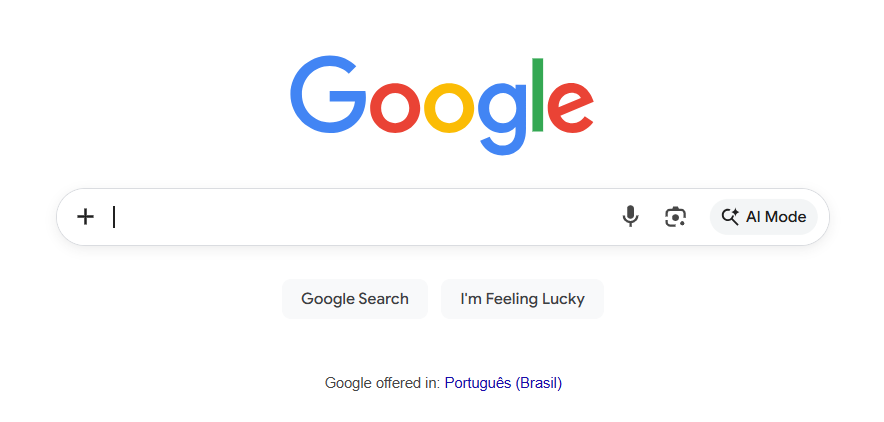
AI Mode button on the Google homepage
Option 2. Select AI Mode from the filter bar (next to Images and Videos).
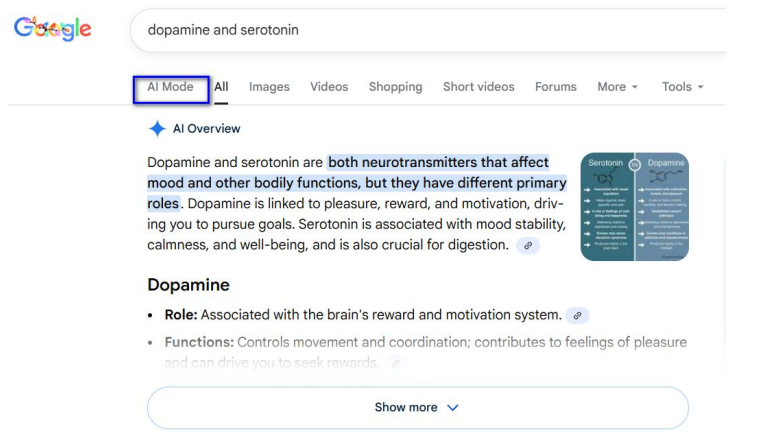
AI Mode on the filter bar
Option 3. Click “Dive deeper in AI Mode” at the end of an AI Overview.
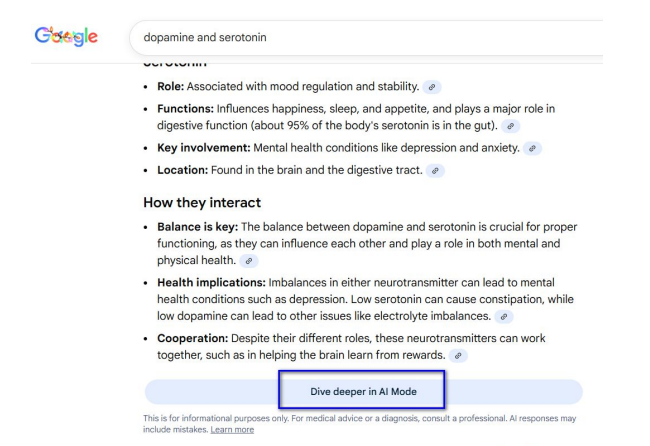
Dive deeper button at the end of an AI Overview
Things to try:
Ask AI Mode to generate prep material. For example: “Create an information pack for an English<>Portuguese conference interpreter preparing to interpret at an ornithological conference. Focus on alcids. Include key terms and their equivalents from reputable sources.”
AI features in Edge
Get instant answers with Copilot in Bing
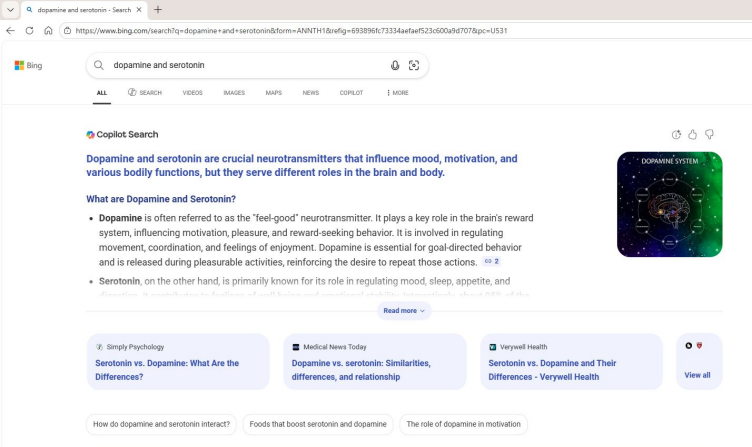
Bing’s AI Overview
What it is:
Bing’s version of AI Overviews, powered by Copilot. They appear at the top of Bing search results as conversational-style summaries, often with citations.
Why it’s useful for translators and interpreters:
Copilot Answers serve the same purpose as AI Overviews: a brief introductionabout a new topic.
Things to try:
Run the same search you did on Google (“What are sea parrots?”). Then click one of the suggested subtopics at the top — Overview, Diet, Habitat, Reproduction, or Threats — to explore further.
Chat your way through research with Copilot Search
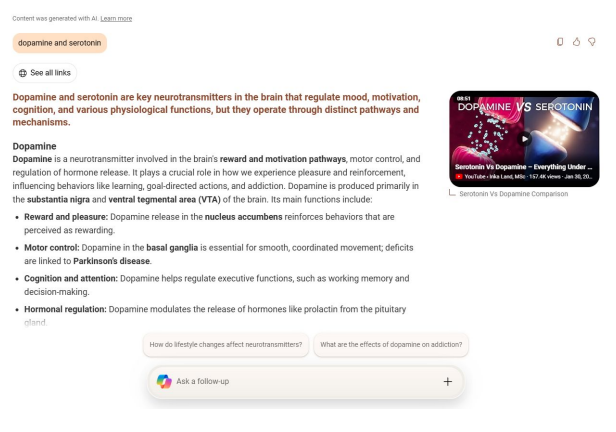
The Copilot-Bing conversational interface
What it is: Bing’s version of AI Mode, with a layout that encourages visiting original sources. You’ll find a “See All Links” button at the top, and the top search results appear as clickable buttons below the summary.
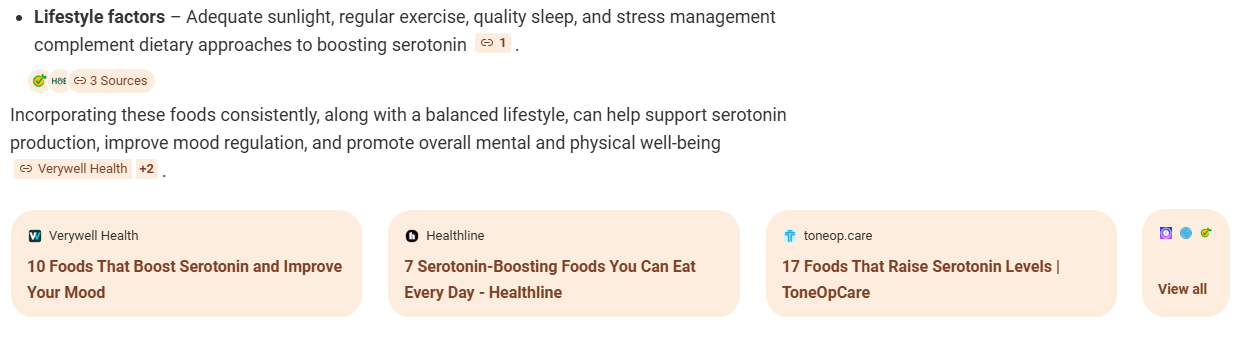
Top-ranked results appear as clickable buttons at the bottom
Why it’s useful for translators and interpreters: For the same reasons as AI Mode– you can ask follow-up questions, refine queries, and request information in specific formats.
How to access it:
Click the Search tab in the menu (next to Videos, Images, Maps, etc.)
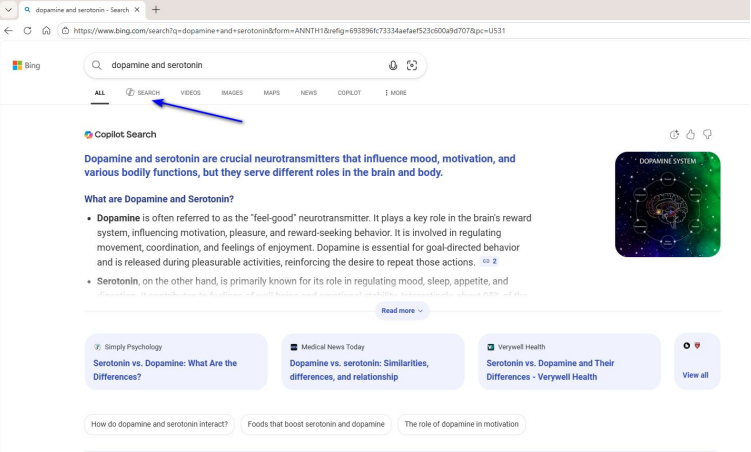
Accessing Copilot Search
Things to try:
In Copilot Search, click one of the suggested prompts to explore a topic further.
Analyze any webpage with Copilot Sidebar in Edge
What it is: Copilot’s integration inside the Microsoft Edge browser. With your permission, it can view the page you’re on and synthesize the information in various ways.
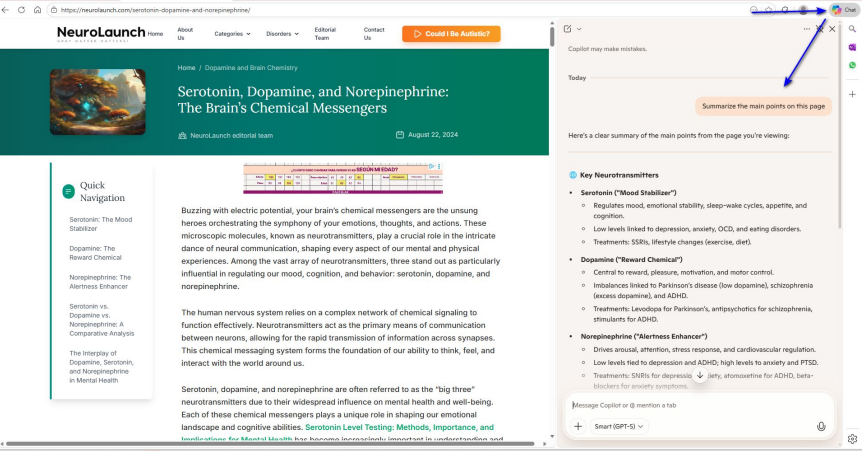
Using Copilot in Edge to summarize a page
Why it’s useful for translators and interpreters: Highlight a term on the page to get Copilot to explain it. You can also have Copilot summarize the page or extract key terminology – all without leaving your browser.
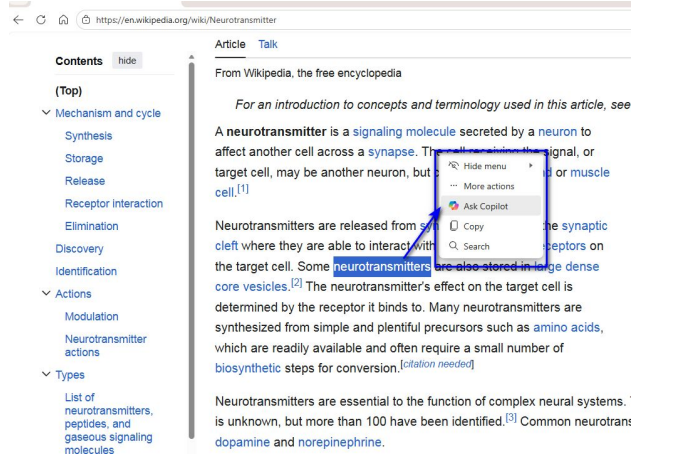
Highlight a term and get Copilot to explain it
Things to try:
Highlight a term on the page and choose “Ask Copilot” from the right-click menu for a quick explanation.
Ask Copilot to extract key terms, acronyms (and what they stand for), or named entities from a page or document, and classify them into categories.
(Want to take this up a notch? Check out my detailed post on 11 Ways to Boost Your Translation and Interpreting with Copilot.)
Rethink browsers – and how you search
Generative browsing is creating new ways for translators and interpreters to tackle research and prep – and this is just the beginning.
In my next post, I’ll explore agentic browsing and two new AI-first browsers you might not have heard of: Comet and Atlas.
P.S. This post comes from a recent insiders training. Become a member to access this and other professional development resources for translators and interpreters.