
Claude AI: The Smart Choice for Ethical Language Professionals
You’re already using ChatGPT – maybe even Gemini and Copilot. But there’s one chatbot you may not have tried yet: Claude.
In this blog post, we’ll tap into what makes Claude unique – and, as usual, I’ll share some helpful use cases for language specialists.
An ethical bot
Claude stands out in numerous ways – starting with its name, a homage to mathematician and electrical engineer Claude Shannon.
But there's more to it than its human alias.
Fearing that rapid AI development was outpacing safeguards, former OpenAI employees built Claude and trained it differently than other models. Instead of relying on data alone, it learned from a “constitution” of ethical principles and documents like the Universal Declaration of Human Rights to reduce the chance of causing harm.
The company behind it, Anthropic, isn’t like other AI companies, either. As a Public Benefit Corporation (PBC), it’s legally committed to transparency and responsible scaling, and will never share or sell your data.
But Claude isn’t just an ethical bot built by a responsible company. It’s also highly capable – in some ways, even more than ChatGPT.
Tasks where Claude excels
Claude does everything you’d expect from an AI assistant: drafting emails, writing code, summarizing documents, doing research, and so on. But it really shines for these tasks:
1. Processing lengthy content
Thanks to its large context window – essentially, an extended working memory – Claude can handle more information than most AI chatbots. While others struggle with long documents, Claude can analyze and summarize a short book, extract terminology from a dense technical manual, or answer questions across multiple reference files at once. If you work with lengthy documents, Claude is a great choice.
2. Writing
While other chatbots sound like AI, Claude’s is more expressive and human-like. It also has a feature to easily create writing styles and apply them to a piece of writing – kind of like Instagram filters for text. This combination of solid writing with easy customization makes Claude an excellent option for client communication.
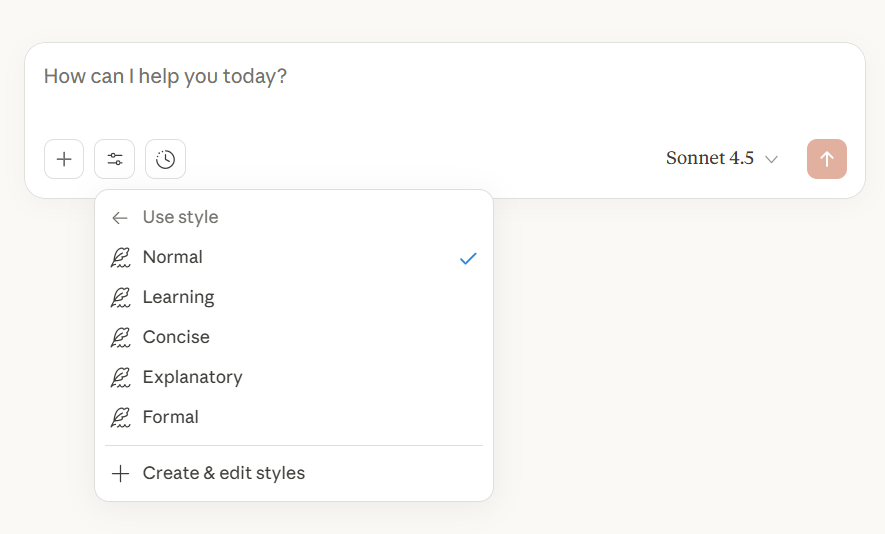
Choose between styles in Claude AI, or create your own
How to create and use a writing style in Claude
Click “Search and tools.”
Select “Use style.”
Choose “Create and edit styles.”
Pick “Create custom style,” then “Create custom style.”
Paste or upload one or more writing samples.
Save the style.
To apply your saved writing style, navigate to “Use style,” select your custom option, and ask Claude to compose or rewrite content using that tone and approach.
Need to draft an email fast? Enter essential information, and Claude will generate a professional response in seconds. You can make it more formal or concise with a single click, and won’t need heavy editing to remove the so-called “AI tells.”
One of Claude’s greatest strengths: Artifacts
Like many AI tools, Claude can generate a range of file types. One of Claude’s greatest strengths lies in displaying these in a separate side panel as Artifacts.
Claude will often generate artifacts without prompting, but if it doesn’t, type “turn this into an artifact” in the chatbot.
This opens a separate panel where you can see your artifact updating live while you chat with Claude.
Artifacts can be text documents, diagrams, apps, or web pages. This allows you to easily revisit, edit, or refine the content as needed.
To ensure Claude creates interactive content in the side panel, select “Artifacts,” “+New Artifact” from the left menu before you begin.
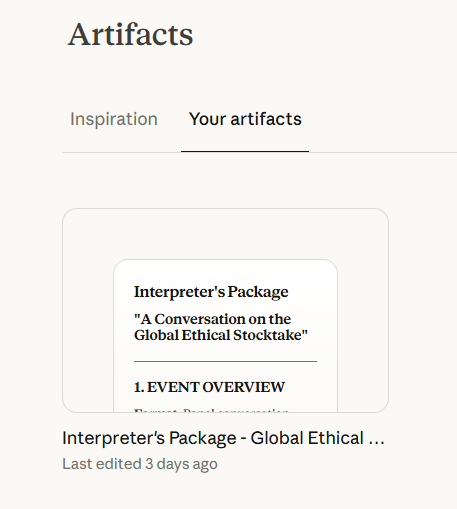
An interpreting brief artifact in Claude
Use cases for language specialists
Claude offers countless applications for your language work. Here are three handy examples for translators, editors, and interpreters.
Proofreading
Want a second set of eyes on your work? Turn Claude into your proofreading assistant. Simply click the “+” icon and “Upload a file,” then use this prompt:
Help me edit and improve this blog post. Create an artifact so we can discuss specific sections.
Implement Claude’s general feedback, or select a chunk of text, then click “Improve” and add instructions in the “Describe what you would like to update” box.
I recommend asking for 3 to 5 alternatives, then choosing your preferred text.
I used this prompt for a slightly long sentence:
Suggest three ways to break up and restructure this sentence to improve it.
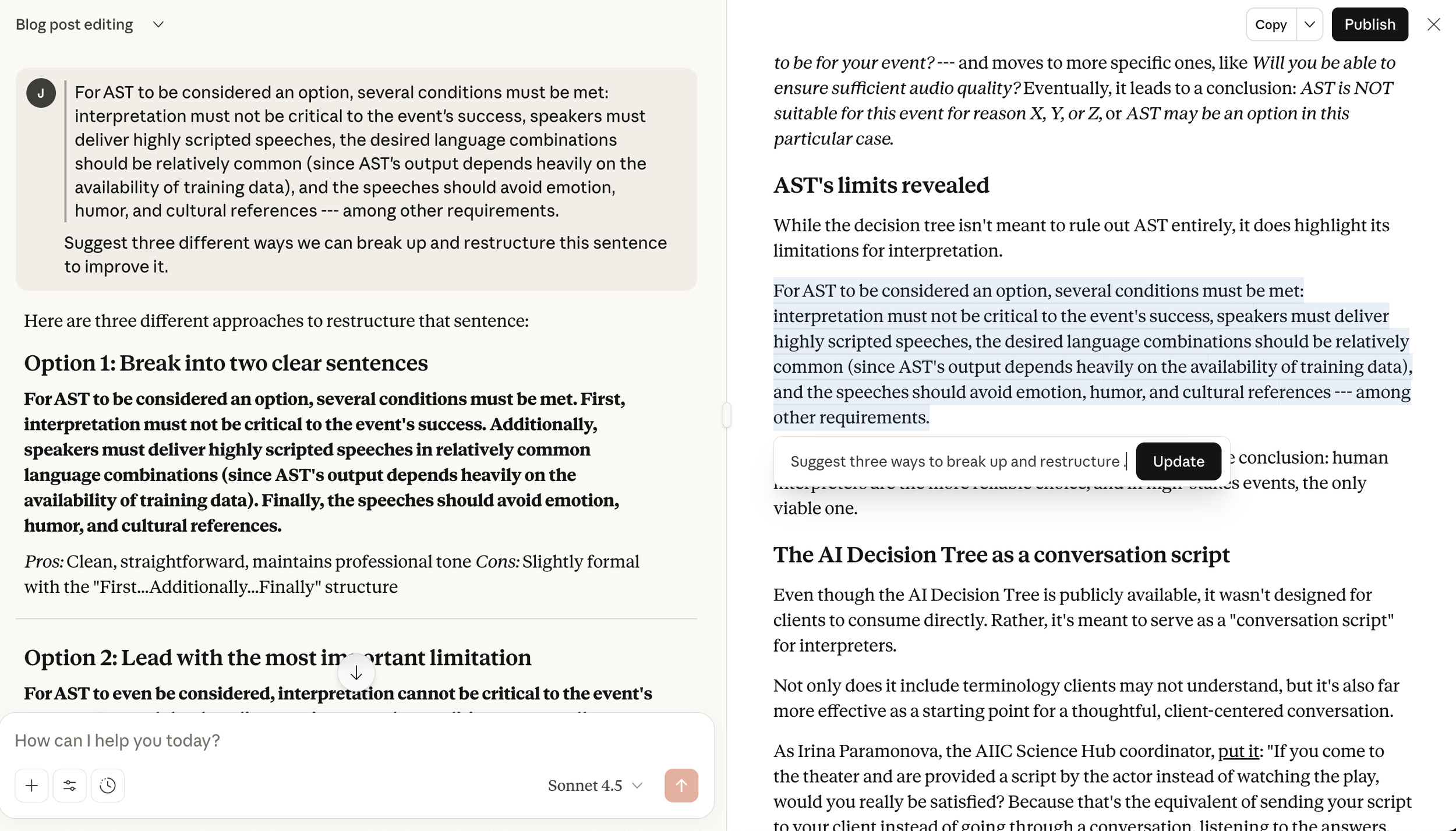
Select a section of text in an artifact, then use Claude for proofreading.
Interpreting Brief
Short on prep time for an upcoming assignment? Have Claude create an interpreter's package for you. Here's a sample prompt:
I’m a [language pair] interpreter. I have to prepare for a [topic] conference where the focus will be on [subtopics]. Prepare an interpreter’s package for me.
Claude will generate an artifact including a comprehensive package with terminology, acronyms, useful phrases, key concepts, and more to review before the event.
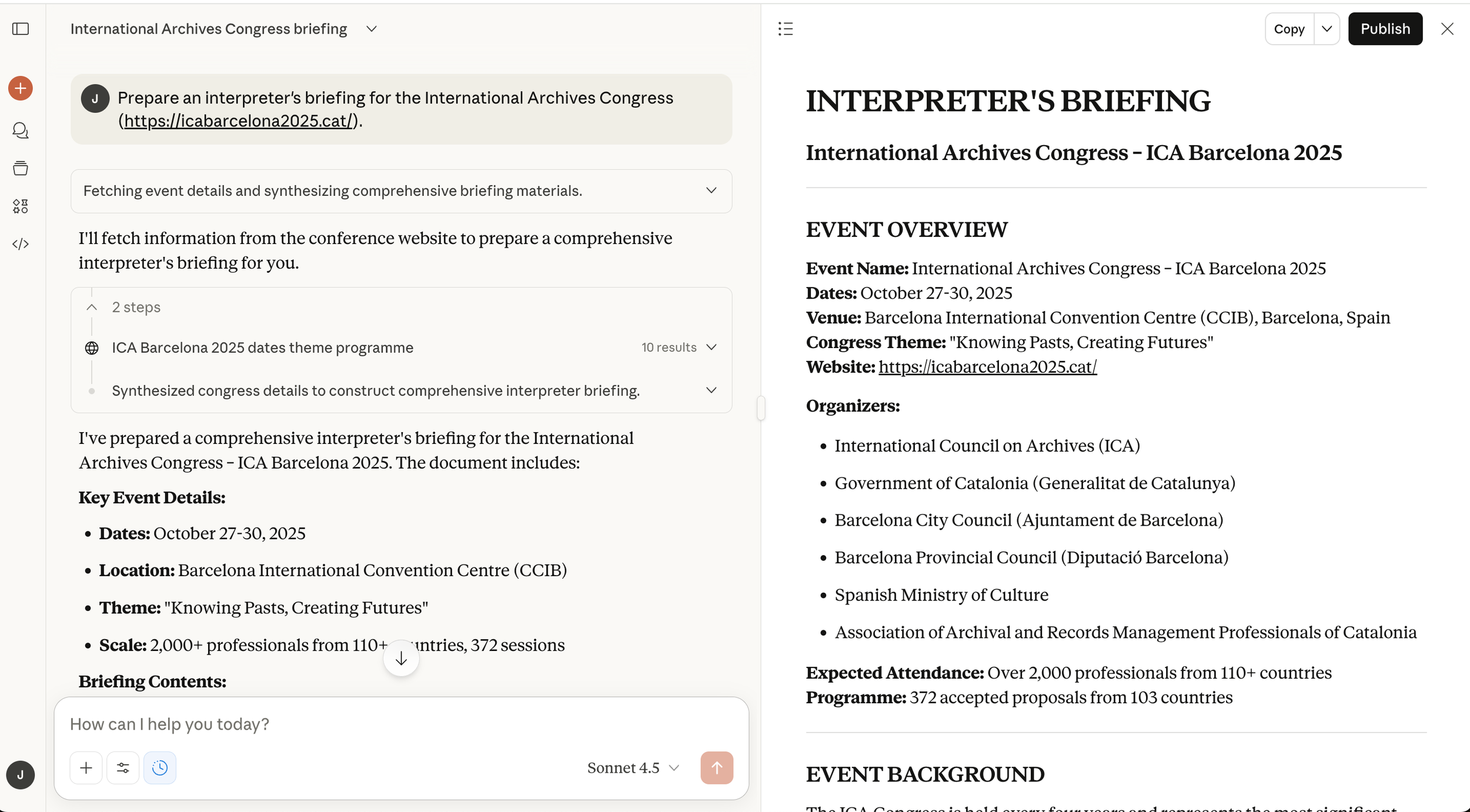
Create an interpreting brief with Claude
Translation Quality Assurance
Working alone on a large translation project? Use Claude as your revision and QA specialist. Upload your translation file, then ask it to review it with this prompt:
Review the [target language] translation by comparing the source and target texts and identifying any potential errors. Look for mistranslations, poor phrasing, punctuation, or formatting inconsistencies, data mismatches, etc., and suggest improvements without deviating from the meaning or tone.
Claude will produce a detailed QA report pointing out critical, moderate, and minor issues.
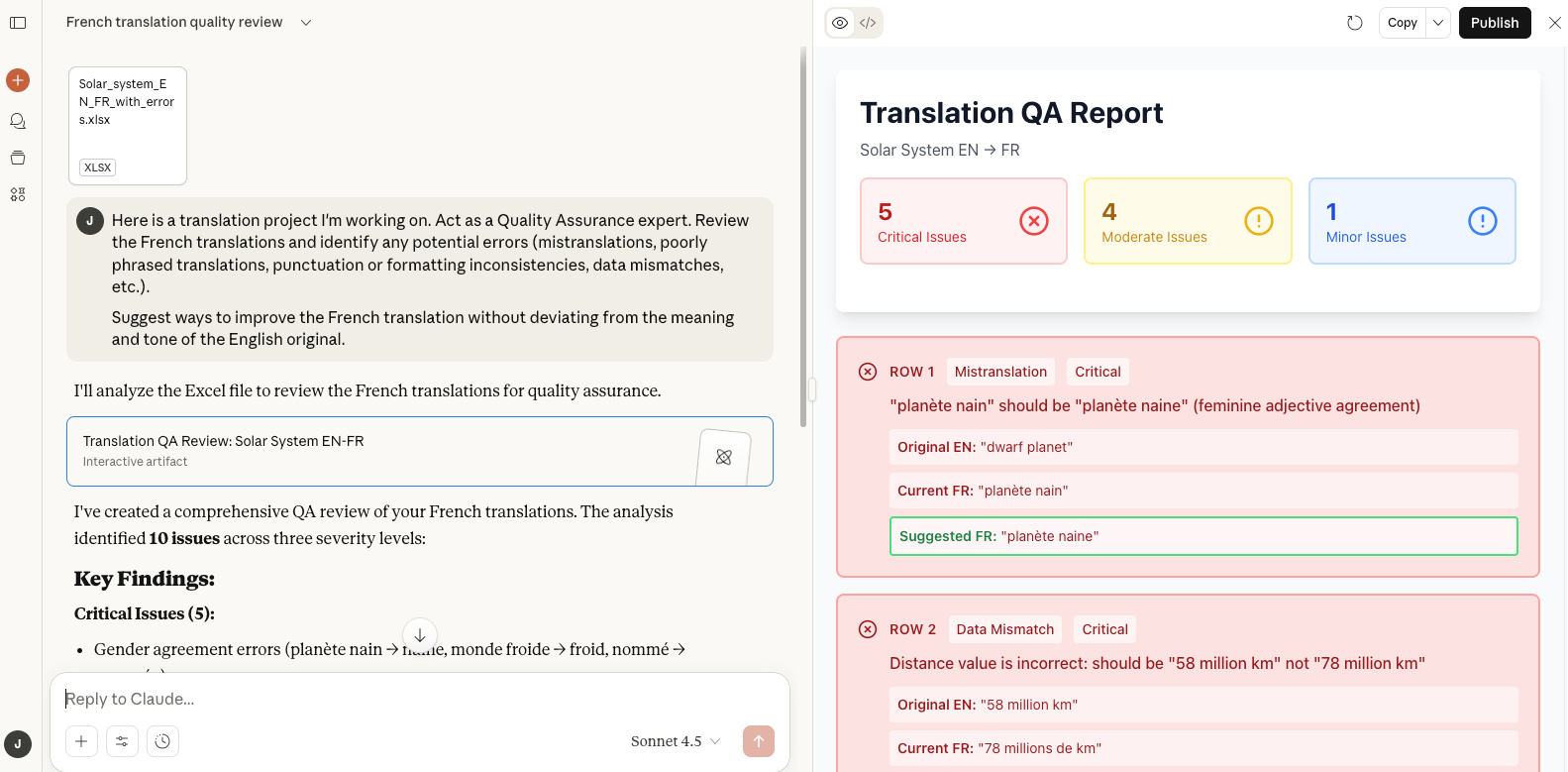
Claude’s detailed QA report includes suggestions to address significanterrors.
Things to be aware of
Claude has annoying usage limits, even for paid users. Once you hit your limit, you won’t be able to use the app for a couple of hours.
Also, while Anthropic won’t sell your data, it may use information you share to help train future models – unless you opt out (which I recommend). To do so, click your profile icon (bottom left), then go to Settings > Privacy and turn off “Help improve Claude.”
Your new favorite AI tool?
With its ethical foundation, expressive writing, and ability to process lengthy documents, Claude might just replace the AI assistant you’re using now.
Ready to give it a try? Visit claude.ai to get started.